![brioHR-logo-color.svg]](https://support.briohr.com/hubfs/brioHR-logo-color.svg)
Audience & Scope
Audience: HR Admin
Module: Payroll
Country: Global
Pre-requisites: Admin Settings in User group enabled, Payroll Manager with access to view & edit Employee's Compensation.
Introduction
Managing different types of employee compensation just got more flexible. With the latest enhancement to the Compensation tab in the Employee Profile, you can now set an employee’s salary based on a daily rate—perfect for businesses with shift workers, part-timers, or employees paid by the day.
Step by Step instructions Setup Daily Compensation
To access the new option:
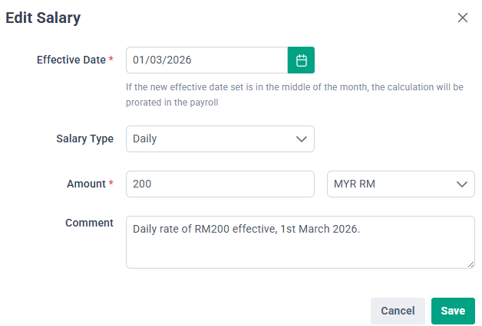
Click into the Employee Profile > Compensation > Salary
- Click on + Add Salary
- Select Daily Rate from the dropdown
- Fill in the required details
- Click Save
Once saved, the system will automatically recognize this setting during payroll processing.
Important Note on Effective Date
When setting up a Daily Rate compensation, keep in mind:
- The effective date must be set to the first day of the month
- Any other date will not be accepted for this compensation type
This ensures consistency and accuracy when payroll is processed.
How Payroll Handles Daily Rate
When running the payroll cycle:
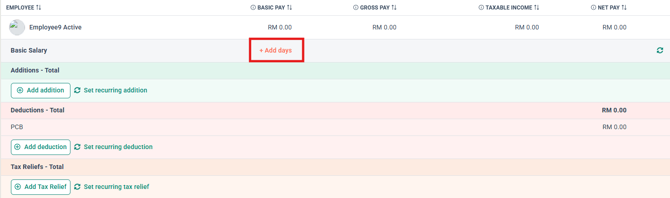
- The employee’s basic pay will default to 0
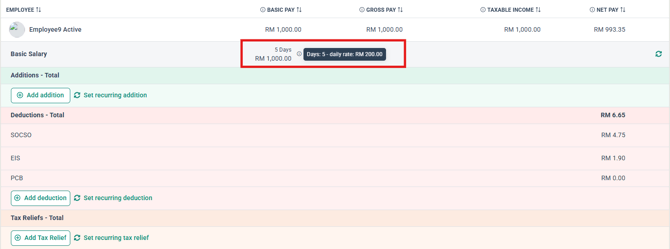
- Payroll processors will need to manually “Add Days” to calculate the total salary
This allows flexibility in capturing actual working days for the payroll period.
How Calculations Are Derived
Here’s how the system uses the Daily Rate for different payroll components:
a) Overtime Calculation
-
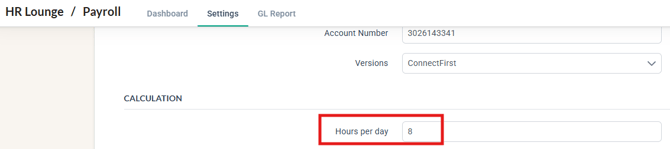
Within HR Lounge, click into the Payroll module
-
Then click into the Settings and into the General tab
-
Scroll down to find the Calculation section
- The setting is located here at the Hours per day
Formula:
Daily Rate ÷ Hours per day
This determines the employee’s hourly overtime rate based on their daily pay.
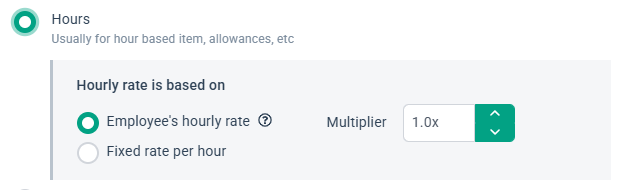
b) Custom Hourly Item (Employee’s Hourly Rate)
You may refer to the steps within this article to create a custom payitem.
Formula:
Daily Rate ÷ Hours per day
Used when assigning custom hourly-based pay items.
c) Unpaid Leave Deduction
Each day of Unpaid leave follows the daily rate setup in the Compensation tab of the employee profile.
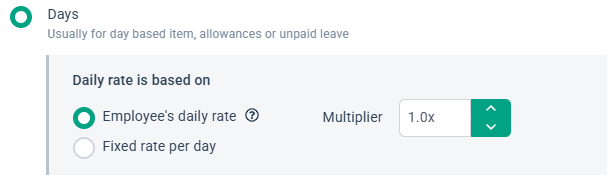
d) Custom Daily Rate Items
You may refer to the steps within this article to create a custom payitem.
Formula:
Custom Daily Rate = Daily rate set in Compensation tab
Any custom daily-based pay items will directly reference the configured daily rate.
Meanwhile for Singapore, here is how the calculations are calculated:
1) Unpaid Leave
You may refer to the formula shared below.
Formula :
Number of days worked / Number of working days in the month x Monthly Salary
2) Overtime
You may refer to the formula shared below.
Formula:
(12 x Monthly basic rate of pay) / (52 x 44)
3) Overtime for Daily employee
You may refer to the formula shared below.
Formula:
Daily pay at the basic rate / Working hours per day
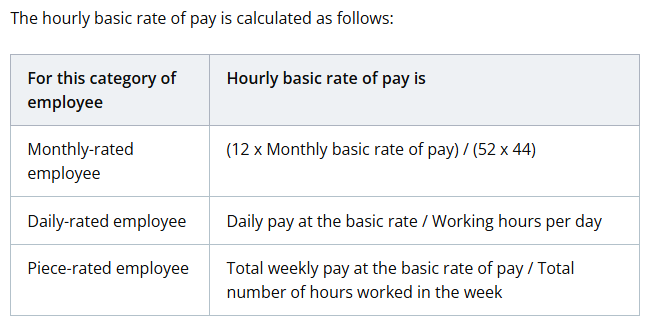
You may also refer to this article from the Ministry of Manpower Singapore for further clarification.
Common Issues/FAQ
Q: Where can I set a Daily Rate for an employee?
A: You can set a Daily Rate by going to Employee Profile > Compensation > Salary, then clicking on + Add Salary and selecting Daily Rate from the dropdown.
Q: Can I choose any date as the effective date for Daily Rate compensation?
A: No, the effective date must always be the first day of the month. The system will not accept other dates for this compensation type.
Q: How is the employee’s salary calculated during payroll?
A: When payroll is run, the basic pay will default to 0. Payroll processors must manually add the number of working days using the “Add Days” function for the system to calculate the total salary.
Q: How is overtime calculated for employees on a Daily Rate?
A: Overtime is calculated using the formula:
Daily Rate ÷ Hours per day
This gives the employee’s hourly overtime rate.
Q: How is unpaid leave deducted for employees on a Daily Rate?
A: Each day of unpaid leave is deducted based on the full Daily Rate set in the employee’s compensation.
Q: Can the Daily Rate be used for other custom pay items?
A: Yes, any custom daily rate items will directly use the Daily Rate set in the Compensation tab for calculations.
Related Articles
1. How to View and Modify the Fixed Remunerations Table in an Employee's Profile
2. How to Enable HR/Admin User Group Permission Settings for Compensation Management
3. How to Manage Salary History in an Employee's Profile
Ownership
By: Arveena