![brioHR-logo-color.svg]](https://support.briohr.com/hubfs/brioHR-logo-color.svg)
Audience & Scope
Audience: HR Admin & Payroll Manager
Module: Payroll
Country: Malaysia
Pre-requisites: HR Module Permission for Payroll Module & Module Settings
Step-by-Step Instructions
PART 1: FIND DEFAULT OVERTIME PAYROLL ITEMS
1. Go to HR Lounge > Payroll > Settings > Payroll Items
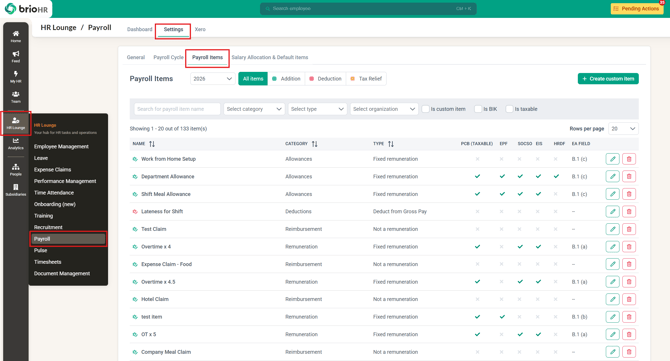
2. Type 'Overtime' in the search bar. The default overtime items are those with the square icon.
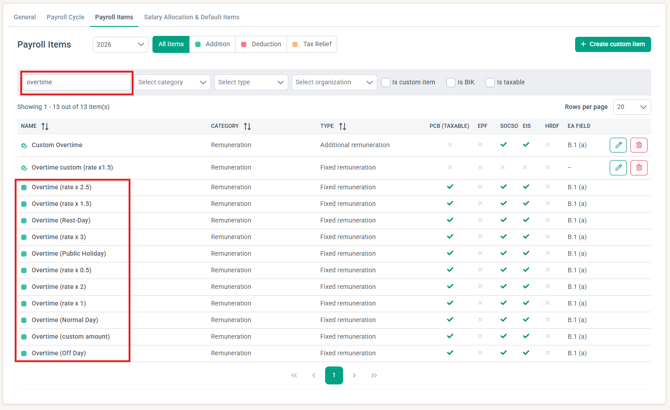
Currently, the system default Overtime payroll items available are:
-
Hourly rates X 0.5, 1, 1.5, 2, 2.5, 3
- Off day (hourly rate X 1.5)
-
Normal day, rest day, public holiday rate (according to the Employment Act)
- Custom amount
IMPORTANT:
Difference between Overtime Rest Day vs Off Day calculation:
- Rest day rate:
- less than half day worked → 0.5 × ORP
- more than half day worked → 1.0 × ORP
- Exceeding normal work hours → 2 × HRP per hour
- Off day rate: 1.5 × HRP per hour
NOTE:
Default Payroll items cannot be edited. If you need an overtime payroll item with a specific setup, you will have to create a custom payroll item.
Refer to this article for more guidance.
These items can be added in the first stage of payroll processing (Adjust payroll)
-
You can add items (as an addition) under a specific employee
Refer to this article on Adding Overtime Hours for an Individual Employee
-
You can add items in bulk by using the Overtime multi-rates table or Excel upload
Refer to this article on How to Add Overtime Hours in Bulk to Payroll
PART 2: ADD OVERTIME ITEM IN MULTI-RATES TABLE
1. Run payroll for any cycle
2. In the Adjust Payroll Stage, click the Overtime button to open the Overtime Multi Rates table
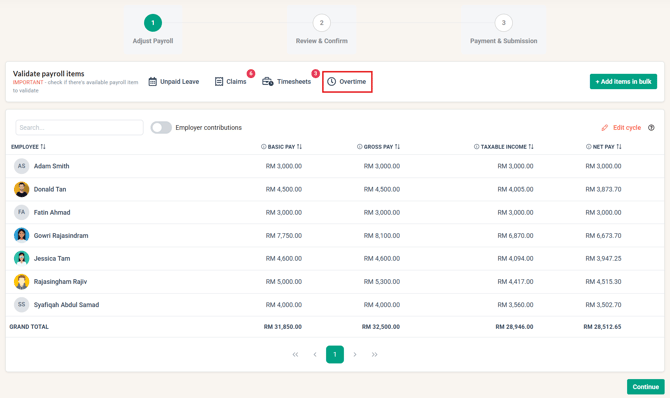
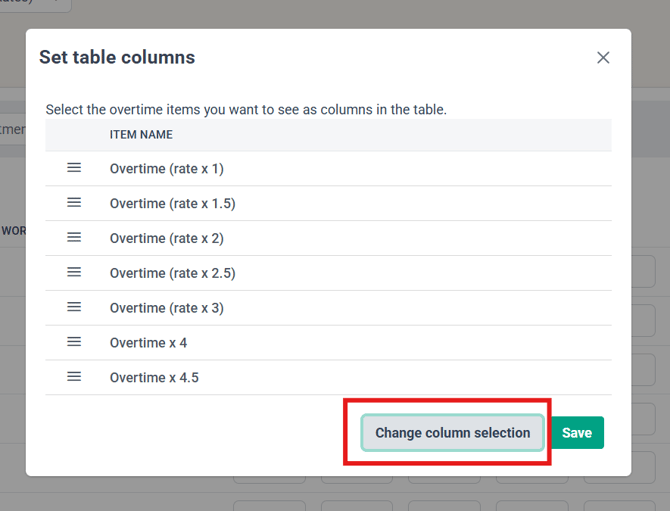
3. Click 'Set table columns'
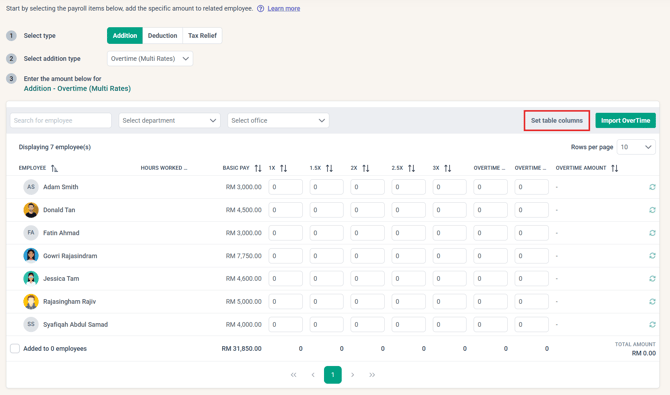
4. Click 'Change column selection'
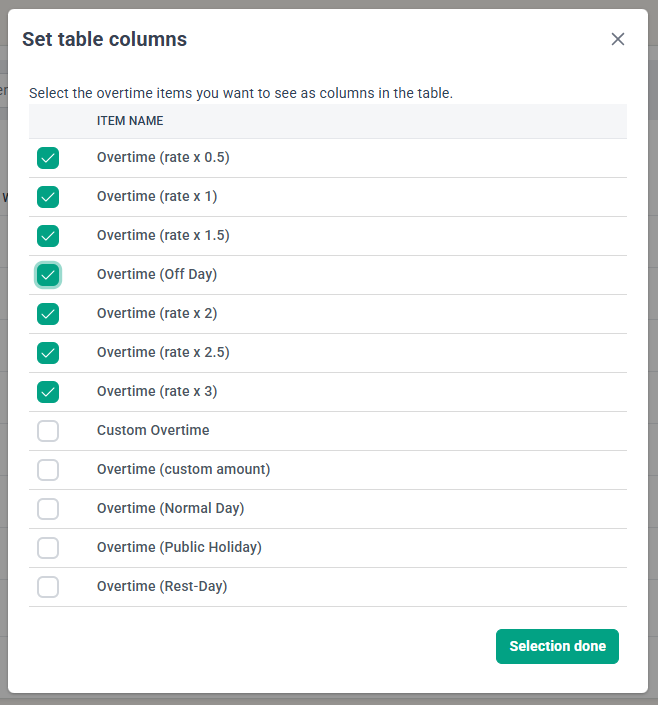
5. Tick the new Overtime item you just created, then click 'Selection done'.
6. You can reorganize the placement of the OT items in the table by dragging the 3-line icon next to the item name
7. Click 'Save'
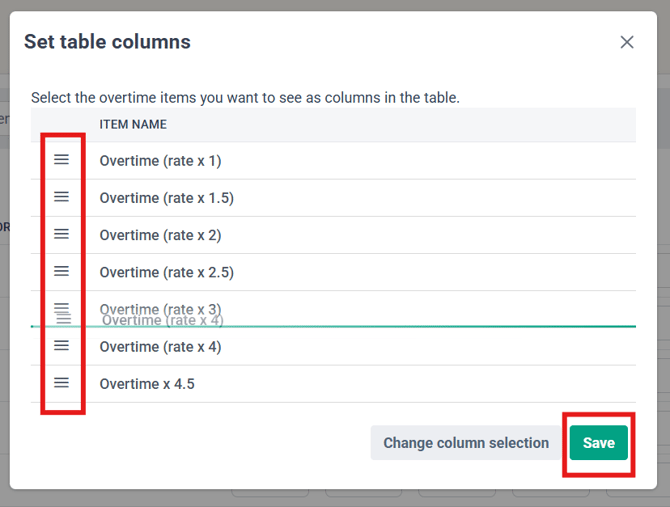
8. You should see the updated table. You can now enter in the Overtime hours/amount for the overtime items to be processed in the payroll cycle.
Common Issues/FAQ
Q1: How is the hourly rate calculated?
A1: It depends on your Payroll Center General Settings > Calculation setup, or if employees have an Overtime flat rate setup. For the rate on normal days, rest days, and public holidays, refer to the calculation here.
Related Articles
Payroll Malaysia: Complete Guide to Setting Up Company Payroll Information
Adding Overtime Hours for an Individual Employee
How to Add Overtime Hours in Bulk to Payroll
Create an Overtime Custom Payroll Item and Add It to the Overtime Multi-rates Table
Ownership
By: Aqilah