![brioHR-logo-color.svg]](https://support.briohr.com/hubfs/brioHR-logo-color.svg)
Audience & Scope
Audience: HR Admin
Module: Core HR
Country: Global
Pre-requisites:
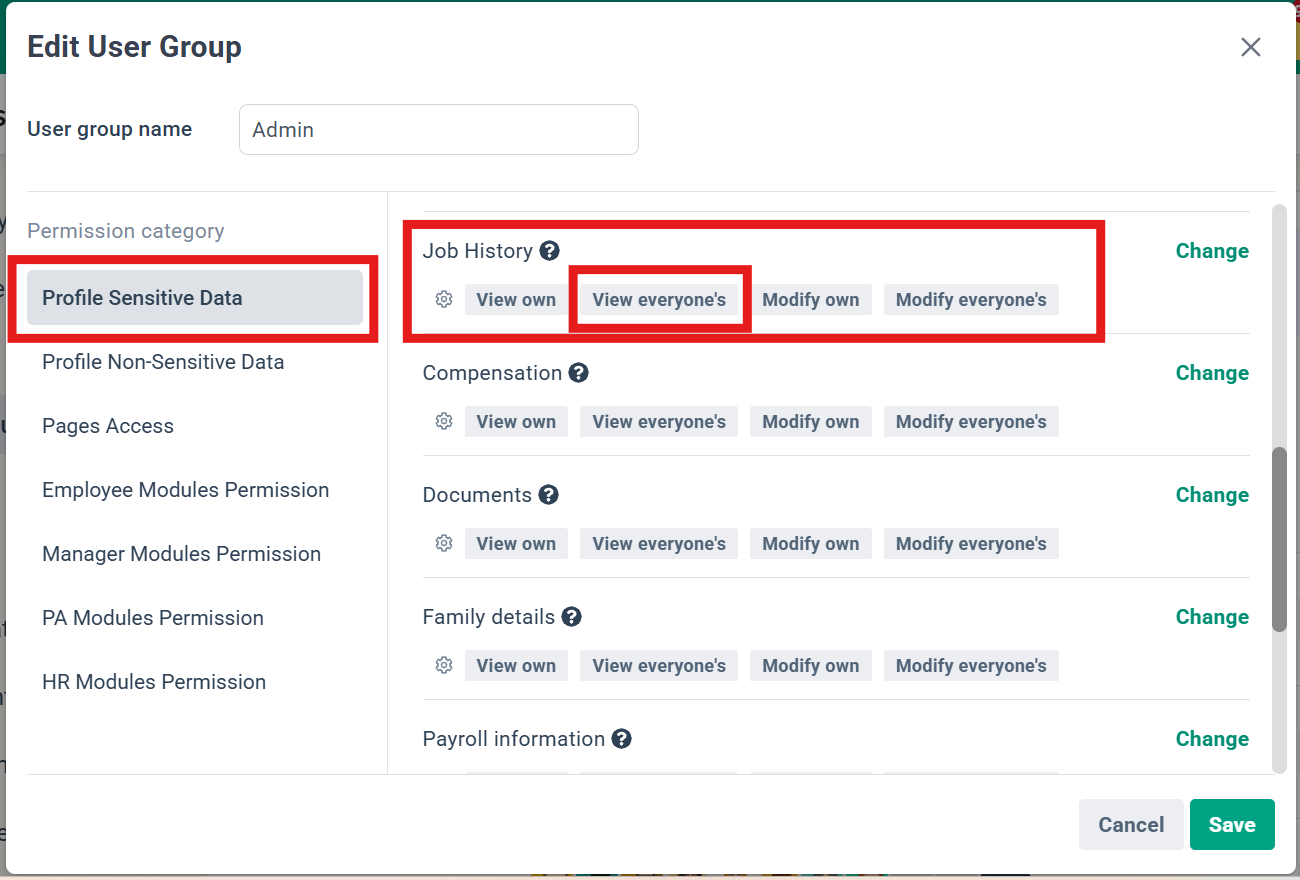
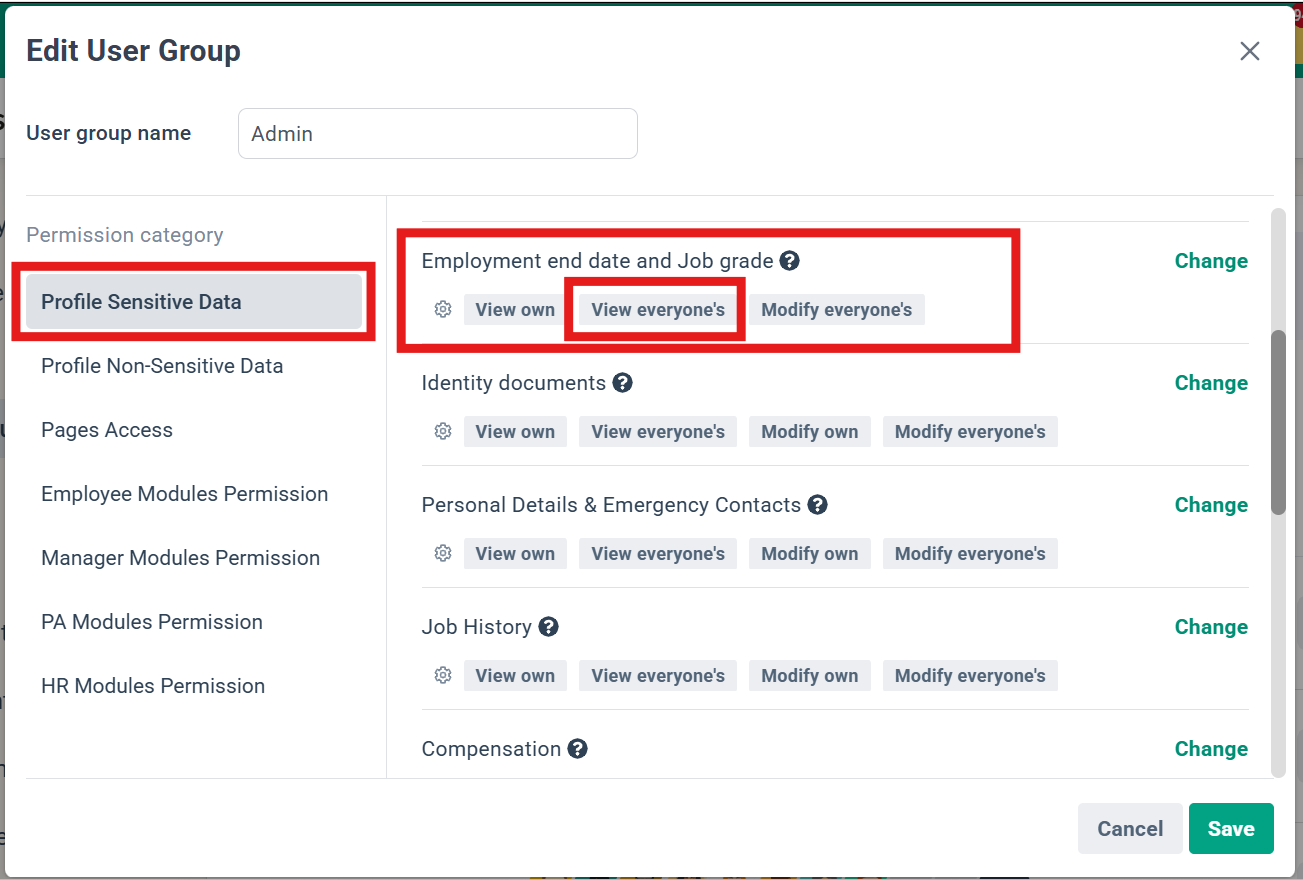
- Profile Sensitive Data permission - set to "View everyone's" for 'Job History' and 'Employment end date and Job grade'.
-
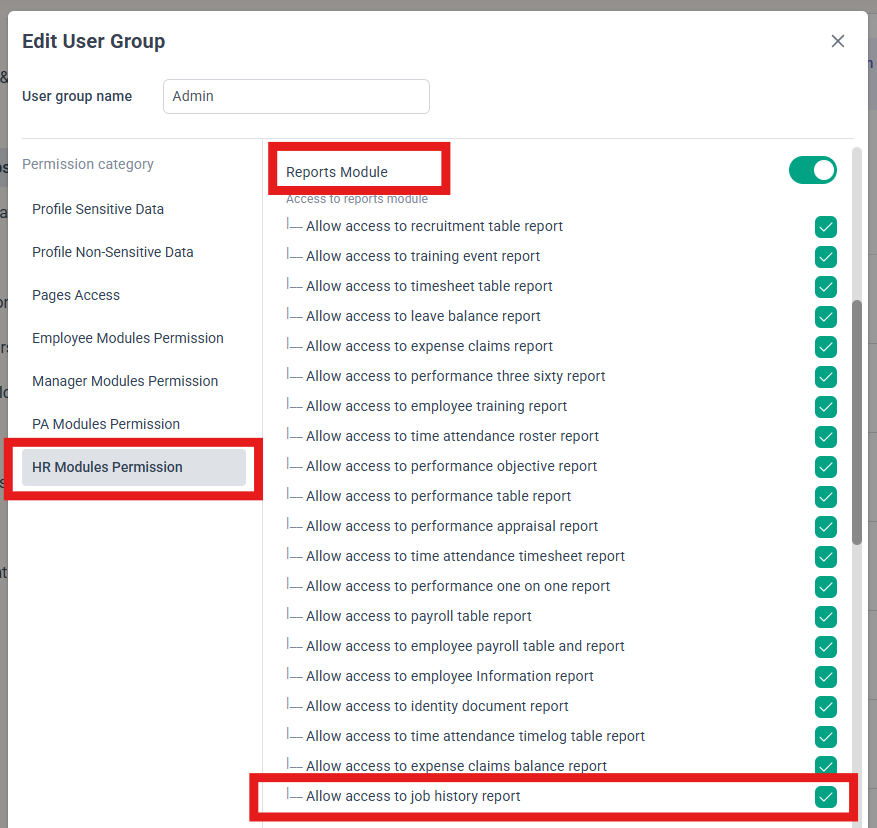
User group settings - the “Allow access to job history report” permission.
Step-by-Step Instructions
Step 1: Enable access.
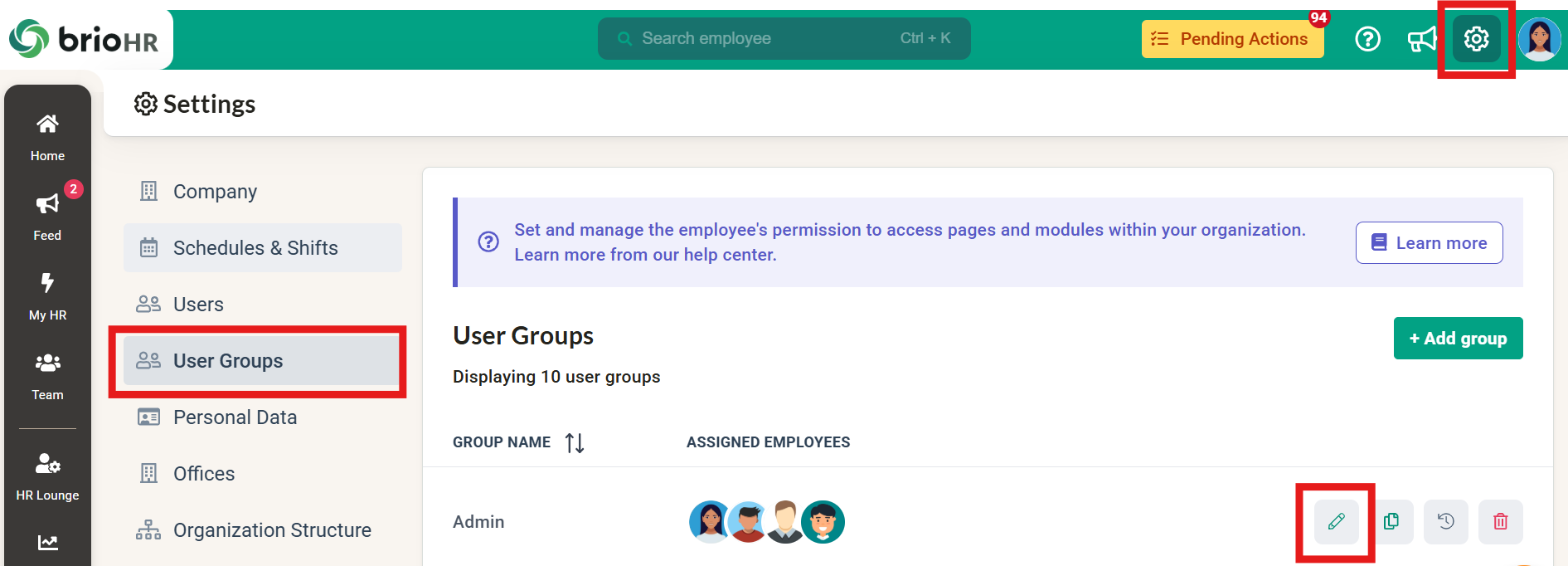
- Go to Admin Settings > User Groups › HR Modules Permission › Reports Module and tick “Allow access to job history report”.
NOTE:
Profile Sensitive Data Permissions:
- Without the permission to see other employees’ job history, the report shows no rows.
- Without “Employment end date and Job grade” rights, Job Grade History, Reason, and Comment are hidden, and so is the Reason filter.
Step 2: Open the report.
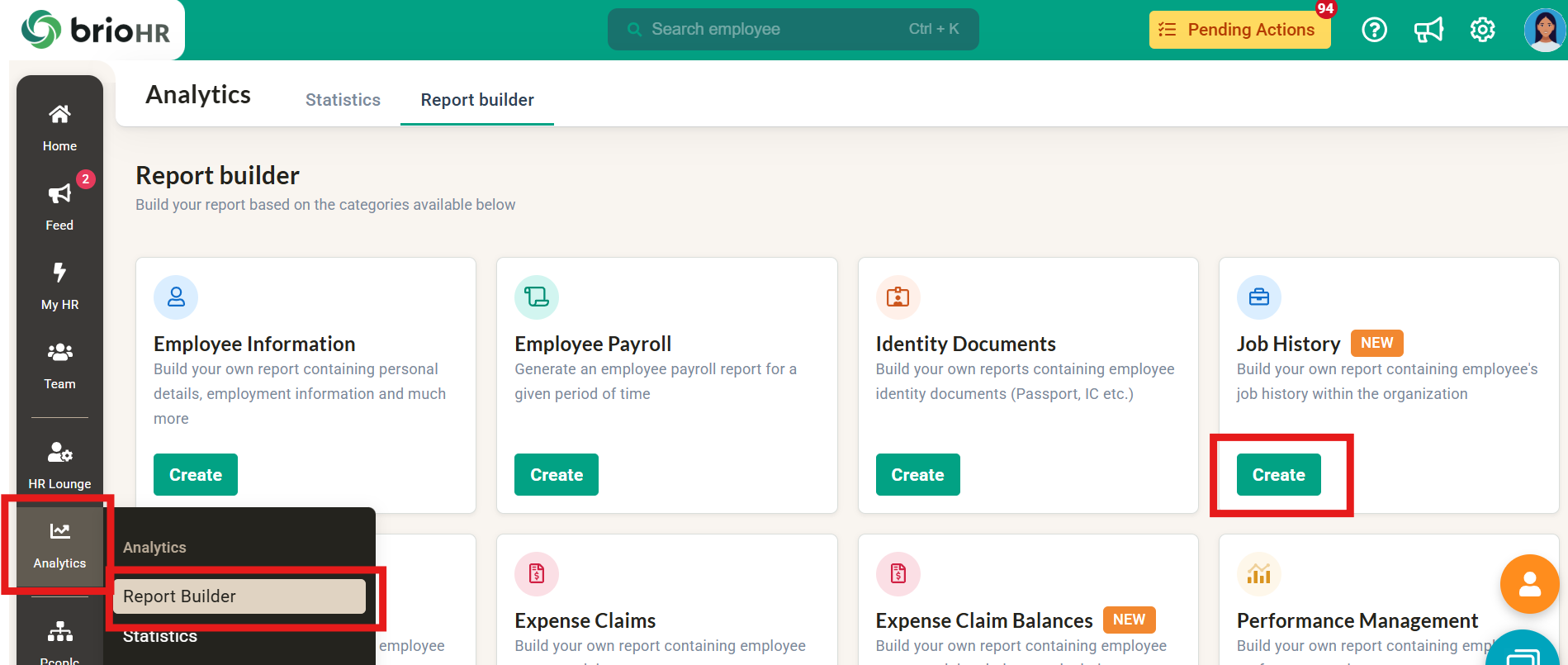
- Go to Analytics › Report Builder › Job History › Create.
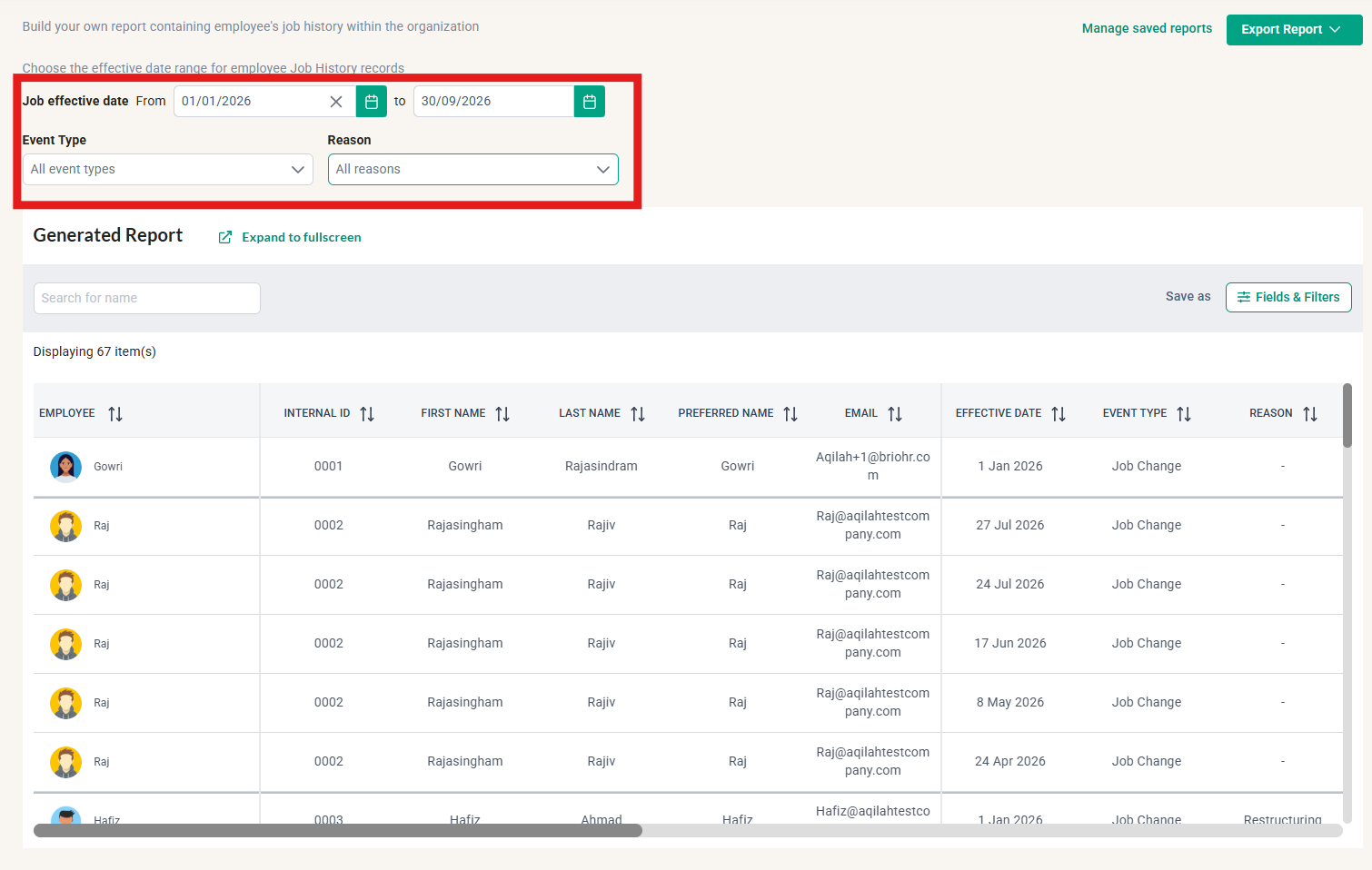
Step 3: Choose your filters above the table.
- Job effective date: will default to show from 'Any date' to the current date. Future dates can’t be picked.
- Event type: Hire, Job Change, Termination.
- Reason: filter by job change reasons and termination reasons.
IMPORTANT:
If you select any job change or termination reason, the report will NOT show 'Hire' records, because new hire records do NOT carry any reason.
Step 4: Choose Fields & Filters. These choose columns and employee groups.
- Section order: Employee Information, Job history details, Personal Details, Employment Details.
- Job history details has 12 fields (checkboxes):
- Effective Date, Event Type, Reason, Comment, then Job Title History, Employment Type History, Job Grade History, Manager History, Office History, Org Unit History, Cost Center ID History, Cost Center Name History.
- By default: Personal Details section and Employment Details (except 'Active/Inactive') section are all unticked.
NOTE:
Employee filters in the panel match the employee’s current value, and then return their full history. Example: “Office = KL” returns everyone in KL today, including rows from before they moved there.
Step 5: Read the table.
- Employees are in Internal ID order, newest record first.
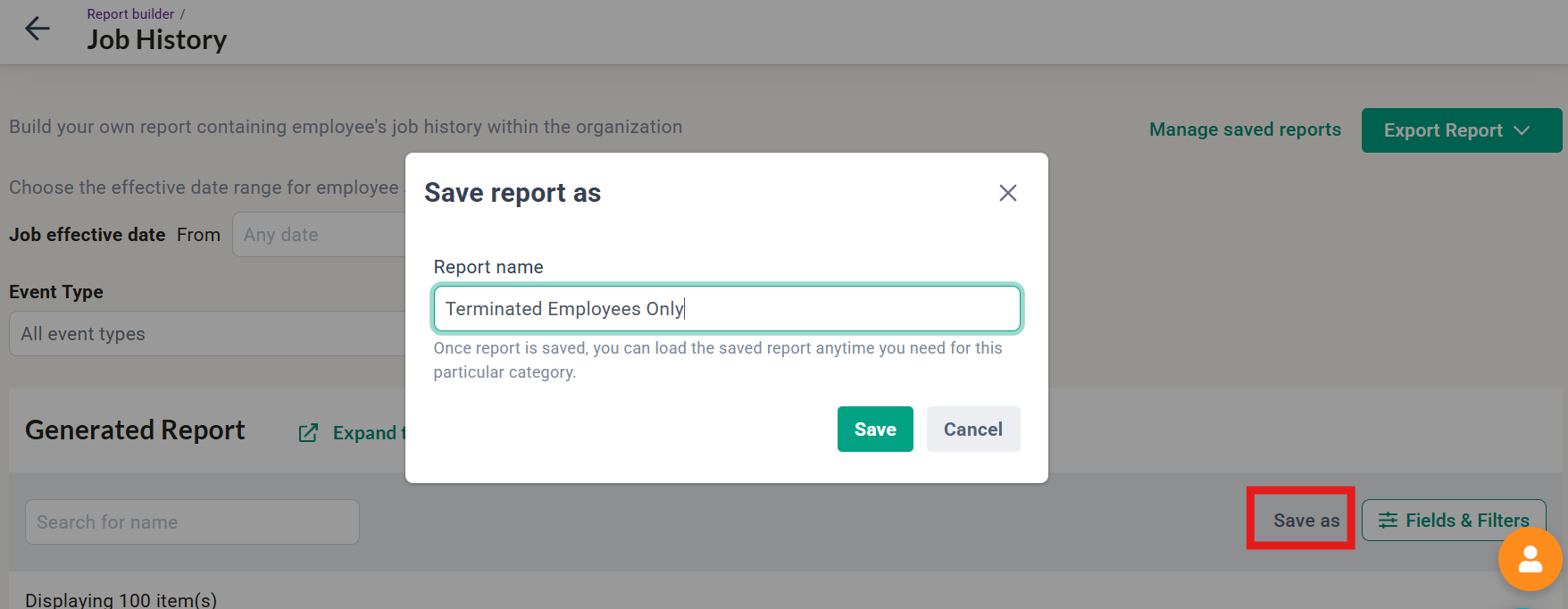
Step 6: 'Save As' to Save your Report Format.
-
Event type and Reason are saved. The date range is not; a saved report reopens on “any date up to today”.
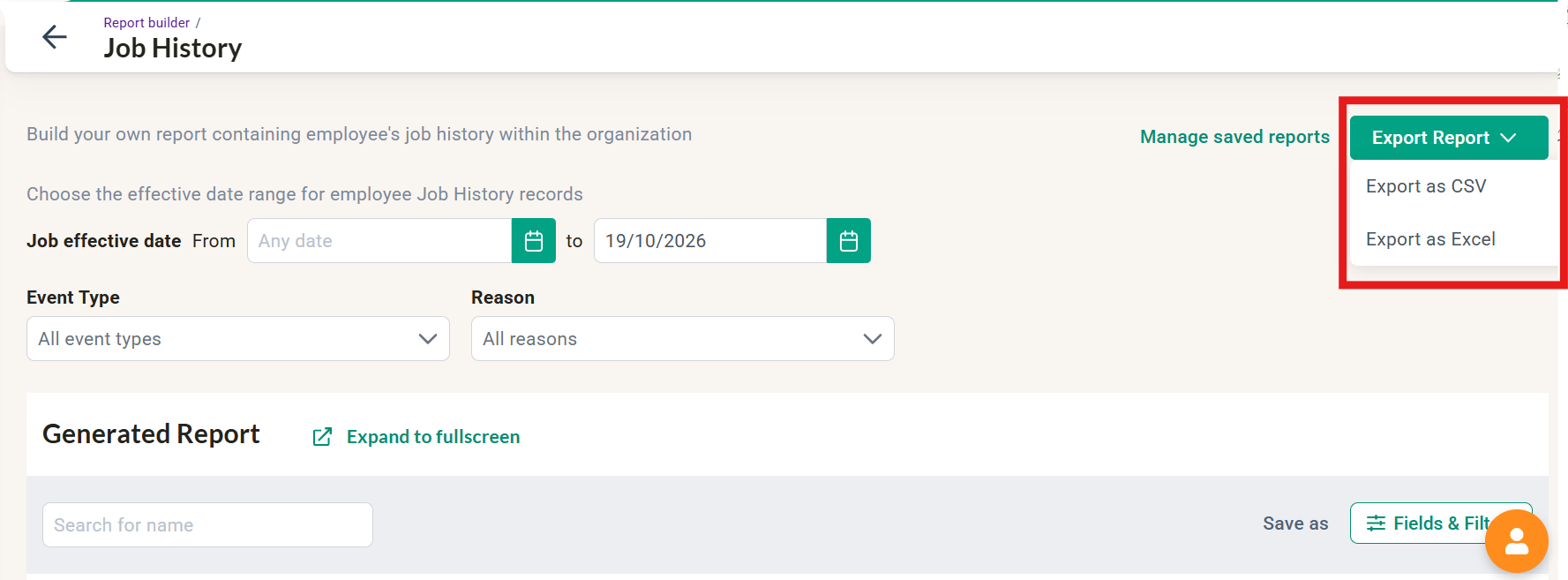
Step 7: Export.
-
You can export the report as a CSV or Excel.
Common Issues/FAQ
Q1: Why did my Office = KL filter return rows showing another office?
A1: Employee filters in the panel match the employee’s current value, and then return their full history.
Q2: Why is there only one row on a date that had two records?
A2: Only the latest-recorded one will be shown.
Q3: Why is 'Reason' blank on Hire records?
A3: Because Hire records do not have a reason.
Q4: Why is a 'Reason' blank on an old row?
A4: Its reason was deleted. Deactivated reasons will still show.
Q5: Is salary history included?
A5: No. The report can only show the Salary field in Employment Details, which is the employee’s current salary.
Related Articles
- Managing Job History on the Employee Profile in brioHR
- Add a Job Change Reason to an Employee’s Job History
- Add Termination Reason When Entering End Employment Date
- How to Enable Reports Module Access in BrioHR User Group Settings
- How to Create a Custom Report Format in BrioHR
Ownership
By: Aqilah