![brioHR-logo-color.svg]](https://support.briohr.com/hubfs/brioHR-logo-color.svg)
Audience & Scope
Audience: HR and admin teams setting up brioHR for the first time
Module: Expense Claims
Country: Malaysia, Singapore
Pre-requisites: Implementation kick-off meeting with your Implementation Manager (IM) completed; the Expense Claims migration template from your IM; Employee List loaded and verified (Profile & Dashboards)
This article is part of the Expense Claims data migration series. It follows the Expense Claims Data Migration Guide (PDF).
Claim Types tab
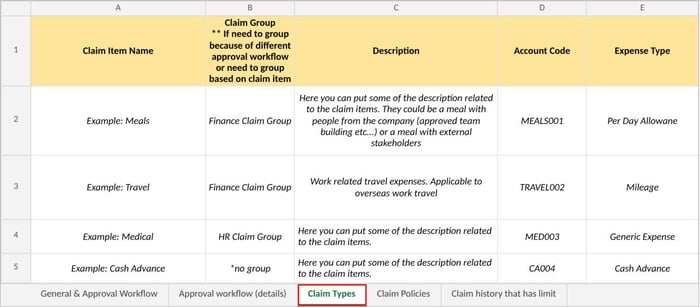
Add one row per claim type. The four example rows show a per day allowance (Meals), a mileage claim (Travel), a generic expense (Medical) and a cash advance.
| Column | Required | Notes |
|---|---|---|
| Claim Item Name | Fill in | The claim type name employees will see, for example "Meals". Use the same name everywhere else in the template, including the claim history. |
| Claim Group | If applicable | Only if you use claim groups (see "Should you use claim groups?" below). The group this claim type belongs to, for example "Finance Claim Group". Leave blank (or "no group") for non-grouped claims. |
| Description | Fill in | What the claim covers, so employees choose the right type. |
| Account Code | If applicable | The account code Finance uses, for example "MEALS001". |
| Expense Type | Fill in | Options: Generic Expense (employees enter the amount), Mileage (distance × rate per km), Per Day Allowance (number of days × daily rate) or Cash Advance (money requested up front and settled later). |
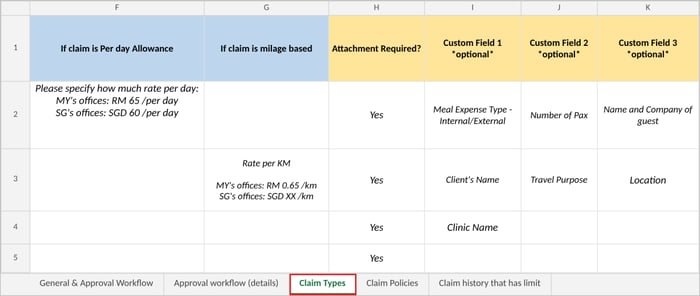
| If claim is Per day Allowance | If applicable | The rate per day for each office, for example "Head office: 65 per day". If the allowance is paid in one fixed currency for all offices (for example for overseas travel), say so. |
| If claim is milage based | If applicable | The rate per km for each office, for example "Head office: 0.65 per km". |
| Attachment Required? | Fill in | Options: Yes or No. Choose Yes if employees must attach a receipt. |
| Custom Field 1, 2, 3 | If applicable | Extra details you want employees to enter, for example "Number of pax", "Client's name" or "Clinic name". |
| Limit per Transaction | If applicable | The most an employee can claim in one claim item. Leave blank for no limit. |
| Limit Per Month | If applicable | The most an employee can claim in a calendar month (by transaction date). Leave blank for no limit. |
| Limit per Year | If applicable | The most an employee can claim in a calendar year (by transaction date). Leave blank for no limit. |
| Do you plan to payout this claim thru our Payroll Management? | Fill in | Options: Yes or No. |
| If yes, please let us know what is the pay items name for this claim payout | If applicable | The pay item name exactly as in Payroll, for example "Expenses Claim" or "Medical". |
| Notes to BrioHR | If applicable | Anything your IM should know, for example different limits for certain groups of employees. |
Should you use claim groups?
| Without claim groups | With claim groups | |
|---|---|---|
| Claim reports | Employees can put any claim types together in one report. | Employees can only put claim types from the same group in one report. Claim types from other groups go in a separate report. |
| Approval workflows | Each policy has one workflow, used for every claim (the Non-grouped Claims workflow). | Each group can have its own workflow in each policy. Any claim types left ungrouped follow the Non-grouped Claims workflow. |
| Best for | Companies where every claim goes to the same approvers. | Companies where some claims need different approvers, for example medical claims approved by HR, and travel claims by the manager then Finance. |
💡 Tip
If the limit differs between groups of employees (for example by job grade), put your most common limit here and describe the differences on the Claim Policies tab.
💡 Good to know
brioHR comes with an Expense Claims pay item (Reimbursement category) and a Cash Advance Settlement pay item, linked to your payroll centers by default. You only need extra pay items if Finance wants some claims shown on a separate payslip line. If so, just write the new pay item name in column P of the Claim Types tab, and your IM will create it.
If you reimburse claims outside brioHR Payroll (for example by bank transfer from Finance), answer No. Approved claims are then marked as Reimbursed in brioHR once they are paid.
Sample of the Claim Types tab:
🔗 Related articles
← Previous: How to Fill In the General & Approval Workflow and Approval Workflow (Details) Tabs
Next: How to Fill In the Claim Policies and Claim History Tabs, and Send Your Template →
Back to Expense Claims Data Migration and Verification: Start Here
Ownership
By: Aqilah