![brioHR-logo-color.svg]](https://support.briohr.com/hubfs/brioHR-logo-color.svg)
Audience & Scope
Audience: HR and admin teams setting up brioHR for the first time
Module: Leave
Country: Malaysia, Singapore
Pre-requisites: Implementation kick-off meeting with your Implementation Manager (IM) completed; Leave Application Record Template from your IM
This article is part of the Leave data migration series. It follows the Leave Data Migration Guide (PDF).
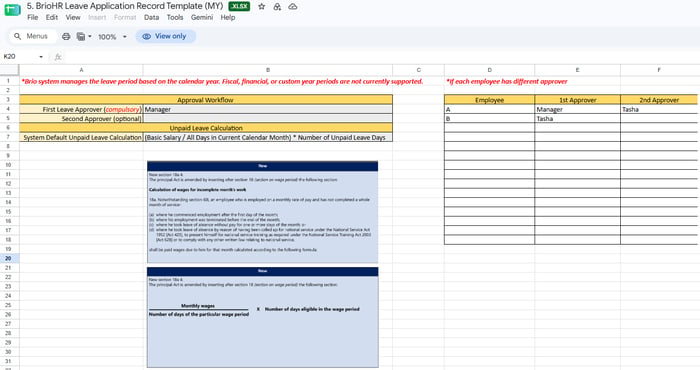
Tab 1: General & Approval Workflow
| Item | Required | Notes |
|---|---|---|
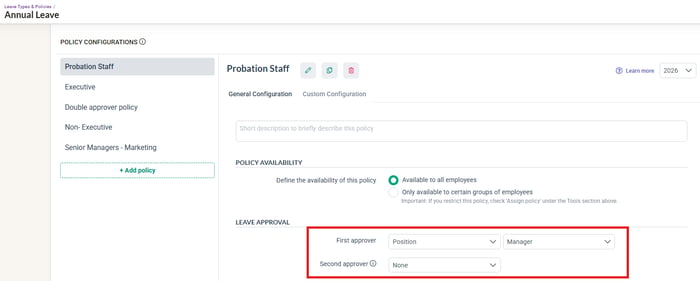
| Default first approver | Compulsory | Usually the Manager. |
| Default second approver | Optional | |
| Per-employee overrides | If applicable | Only if approvers differ by person. Name the approver for each such employee. |
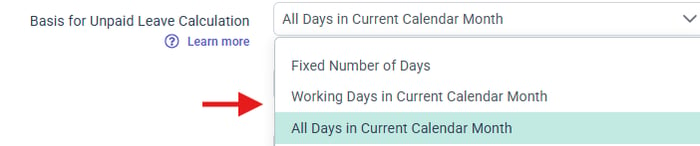
| Unpaid leave calculation | Fill in | Confirm the system default, or specify a different formula. |
Sample of the Leave Application Record Template (MY)
Where it appears in brioHR: HR Lounge > Leave > Leave Types & Policies > select the leave type > select the policy > Leave Approval
Where it appears in brioHR: HR Lounge > Payroll > Settings > General > Calculator > Basis for Unpaid Leave calculation
Tab 2: Leave Policy
Fill in one row per leave type, one leave type at a time. Where the template gives a choice list, the allowed answers are shown.
| Template item | Answer | What it means |
|---|---|---|
| Leave Name | Text | The name employees will see. |
| Credit Basis? | Yes; No | Often used only for Replacement Leave: employees who work on a rest day or off day get replacement leave instead of pay. Credit-based types cannot be changed after creation. |
| Credit Expiry | Days or period | Applies only to credit-basis leave types. |
| Availability | Available to all employees; Only available to certain groups of employees | Controls who can see and use this leave type. |
| Restrictions (if only certain groups) | Restrict offices, departments, gender, job grades, employment types | Tell us which groups can use it. |
| Leave Entitlement Days Per Year | Number | The standard yearly entitlement. |
| Seniority Leave Entitlement | By years of service | Use if entitlement grows with service. |
| Does this leave go by an earned basis? | Yes; No | Yes means employees earn or accrue the yearly entitlement for every month worked. |
| Prorate for new hire? | Yes; No | Whether new joiners get a proportion of the yearly entitlement. |
| Auto rounding when prorating | Round down 0.5 days; Round up 0.5 days; Less than 0.5 round down, equal or more than 0.5 round up | How prorated days are rounded. |
| Allowed to carry forward? | Yes; No | |
| Maximum Carry Forward Leave Days | Number | The most that can be carried over. |
| Carry Forward Expiry | Date or period | When carried days expire. |
| Count office working days only? | Yes; No | On a Monday to Friday schedule, applying Friday to Monday counts 2 days if Yes. If No, it counts the weekend too: 4 days. |
| Allow booking half day | Yes; No | |
| Allow applying in the past date? | Yes; No | Backdating. |
| Allow modifying leave in the past? | Yes; No | Lets employees modify a past approved leave. A modification triggers the approval workflow. |
| Book X days or weeks in advance? | Tell us how many | Often used where you do not allow last-minute leave. |
| Is attachment mandatory? | Yes; No | |
| Notes to BrioHR | Text | Anything else we should know about this leave type. |
Sample of the Leave Application Record Template (MY)
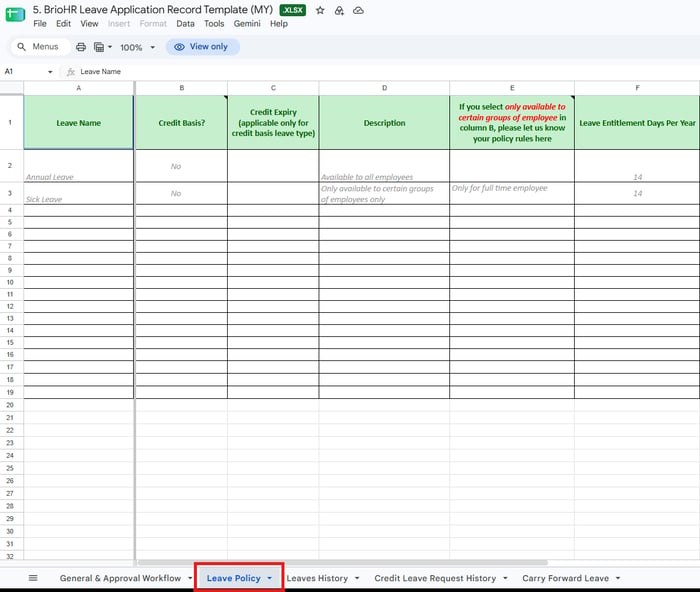
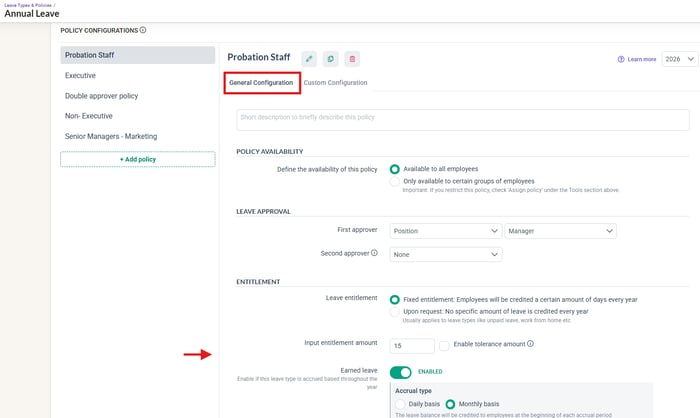
Where it appears in brioHR: HR Lounge > Leave > Leave Types & Policies > select the leave type > select the policy > General Configuration
← Previous: Where Your Leave Data Goes in brioHR
Back to Leave Data Migration and Verification: Start Here
Ownership
By: Aqilah