![brioHR-logo-color.svg]](https://support.briohr.com/hubfs/brioHR-logo-color.svg)
Audience & Scope
Audience: HR and admin teams setting up brioHR for the first time
Module: Leave
Country: Malaysia, Singapore
Pre-requisites: Implementation kick-off meeting with your Implementation Manager (IM) completed; Leave Policy tab filled in
This article is part of the Leave data migration series. It follows the Leave Data Migration Guide (PDF).
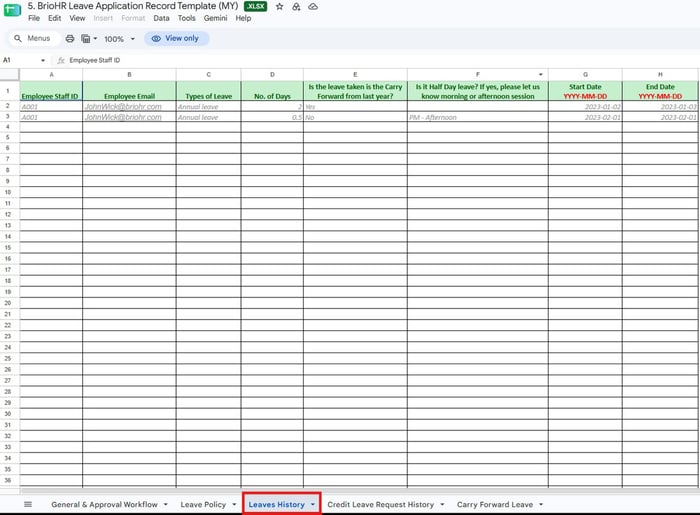
Tab 3: Leaves History
One row per leave already taken so far this calendar year.
| Column | Answer | Notes |
|---|---|---|
| Employee Staff ID | Text | Must match the Employee List. |
| Employee Email | Text | Must match the Employee List. |
| Types of Leave | Text | Must match a leave type name on the Leave Policy tab. |
| No. of Days | Number | |
| Is it carried forward from last year? | Yes; No | Flags whether the day came from carry forward. |
| Is it a half day? | AM - Morning; PM - Afternoon | Fill in only for half days. |
| Start Date, End Date | YYYY-MM-DD |
Sample of the Leave Application Record Template (MY)
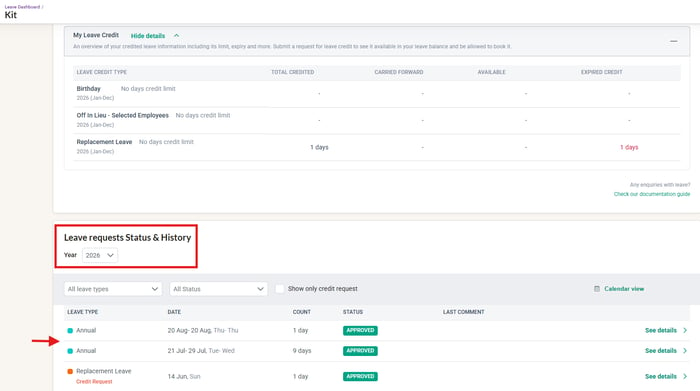
Where it appears in brioHR: The employee's Leave Status and History column
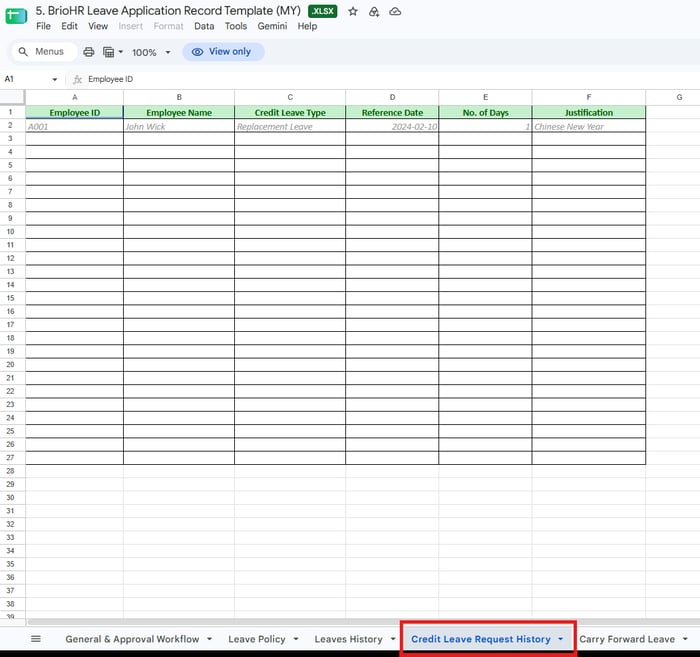
Tab 4: Credit Leave Request History
One row per existing credit, for credit-based leave types only.
| Column | Notes |
|---|---|
| Employee ID, Employee Name | Identify the employee. |
| Credit Leave Type | Must match a credit-based leave type on the Leave Policy tab. |
| Reference Date | The date the credit was earned. |
| No. of Days | Number of credit days. |
| Justification | Why the credit was granted. |
Sample of the Leave Application Record Template (MY)
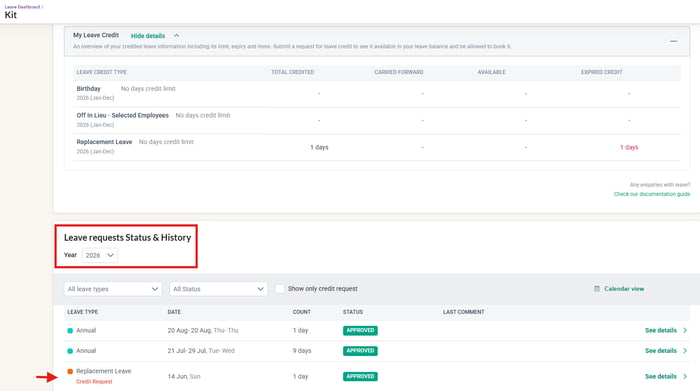
Where it appears in brioHR: The employee's Leave Status and History column
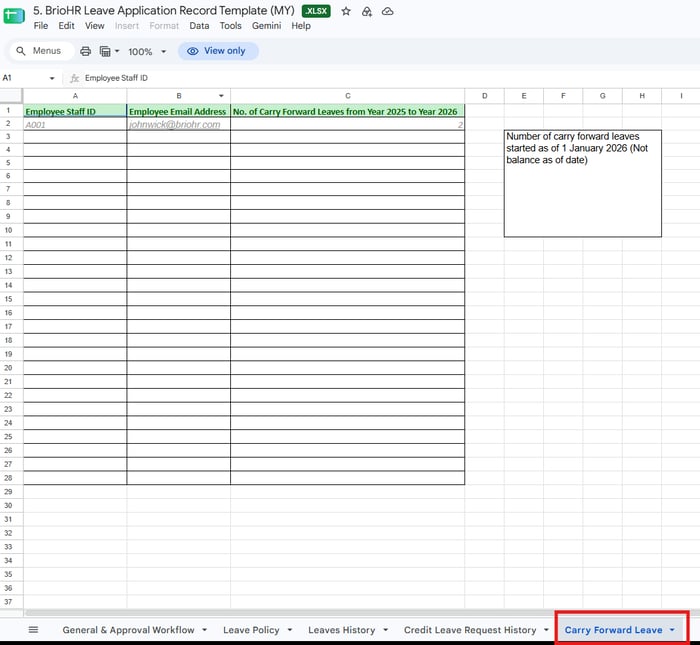
Tab 5: Carry Forward Leave
| Column | Notes |
|---|---|
| Employee Staff ID, Employee Email Address | Must match the Employee List. |
| No. of Carry Forward Leaves (previous year to current year) | Days carried into the new year as at 1 January. The column heading names specific years, so check it matches your go-live year. |
Sample of the Leave Application Record Template (MY)
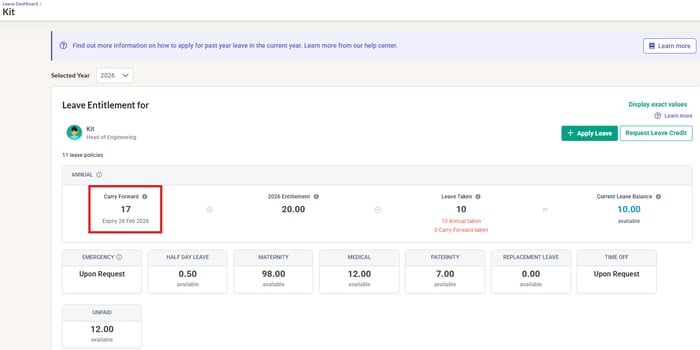
Where it appears in brioHR: The employee's Leave Entitlement column
← Previous: How to Fill In the General & Approval Workflow and Leave Policy Tabs
Next: Leave Template: Malaysia vs Singapore, Common Mistakes and an Example →
Back to Leave Data Migration and Verification: Start Here
Ownership
By: Aqilah