![brioHR-logo-color.svg]](https://support.briohr.com/hubfs/brioHR-logo-color.svg)
Audience & Scope
Audience: HR Admin, Payroll Center Admin
Module: Payroll & Core HR
Country: Malaysia & Singapore
Pre-requisites:
User Group permission:
- Page Access > HR Lounge
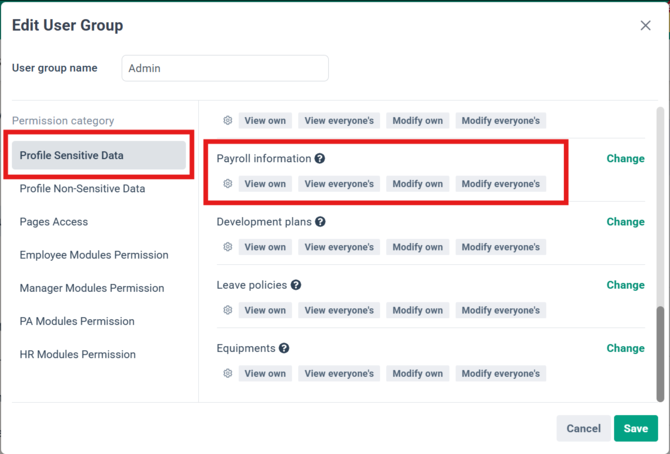
- Payroll Information > set to Modify Everyone’s or Modify Payroll Center’s
Before You Start
1. Check your permissions
The Employee Payroll Center option appears in the Bulk Import/Export page only if your user group has one of these permissions:
- Modify Everyone’s: you can export and import every employee in the company.
- Modify Payroll Center’s: you can export and import only the employees in the payroll centers you manage. You can move them only into payroll centers you manage, but you can exclude them from payroll.
Users with only Modify Own or View access don’t see this option.
2. Know your payroll centers’ cycles
Cycles can be written in two ways:
- By position: “Cycle 1”, “Cycle 2” follow the cycle order shown in the payroll center. For example, if a center has a mid-month and an end-month cycle, the mid-month cycle is Cycle 1 and the end-month cycle is Cycle 2.
- By name: the cycle’s name as it appears in the payroll center, for example “Mid-month Cycle”.
TIP:
Use cycle names where you can. If a cycle is deleted, the cycles after it are renumbered, so “Cycle 2” may then point to a different cycle.
Learn More: How to change payroll center for employee (by HR/Admin)
3. Check the limits
| Limit | Value |
|---|---|
| File types | .xls, .xlsx |
| Rows per file | Up to 1,000 rows |
| Effective date | Always the 1st of the month (YYYY-MM-01) |
| Scheduled future transfers | One per employee |
| Separator for Cycle and Salary Allocation | Semicolon ( ; ) |
| NOT included in this file | Tax, bank, overtime, and other payroll details |
NOTE:
Have more than 1,000 rows? Split them into several files and import each one separately.
Step-by-Step Guide: Import Payroll Center Assignments
Step 1 - Open Bulk Import/Export
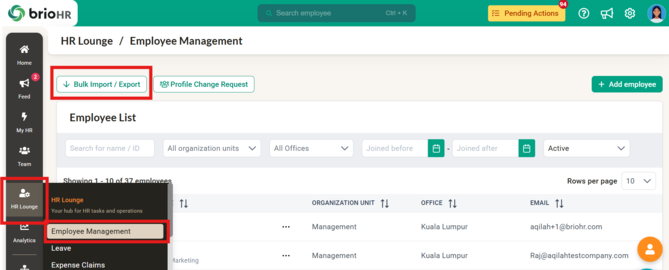
- Go to HR Lounge > Employee Management > Bulk Import/Export.
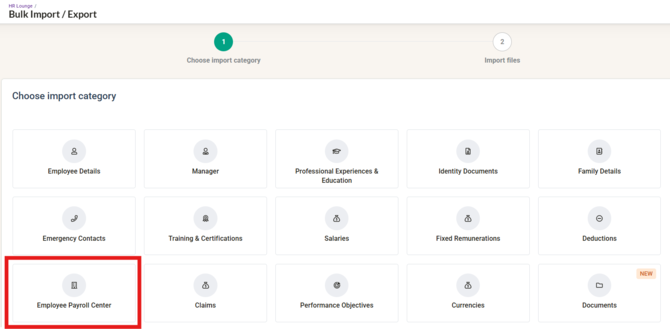
- Click Employee Payroll Center.
Step 2 - Download a template or an export
Choose one:
- Download template: a blank file with the correct column headings. Use it to add new assignments.
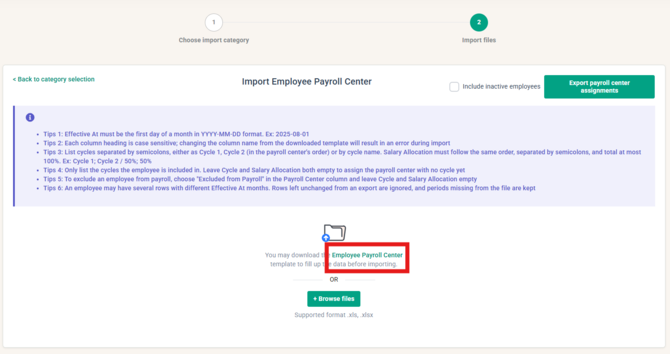
- Export: a file with your employees’ current assignments, ready to edit. Tick Include inactive employees if you also need resigned employees.
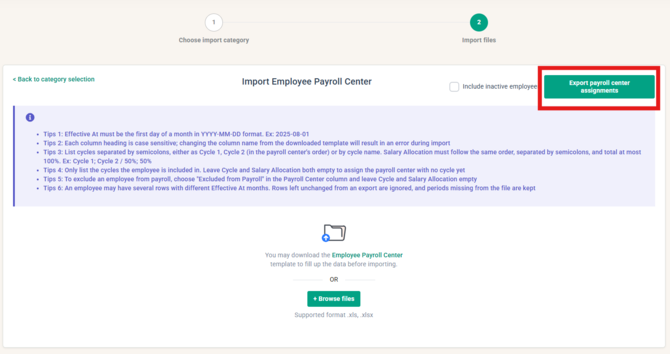
The export includes:
- each employee’s full payroll center history, one row per period, including scheduled future transfers;
- employees with no payroll center, with the assignment columns left blank;
- excluded periods, shown as Excluded from Payroll with Cycle and Salary Allocation blank.
TIP:
Re-importing an export without any changes will have no impact. You can safely edit only the rows you need and upload the whole file.
Step 3 - Fill in the file
Each row sets one employee’s payroll center, cycles, and salary allocation from a given month.
| Column | What to enter | Example |
|---|---|---|
| Email (Unique identifier) | The employee’s login email | aisyah@company.com |
| Effective At | The month the change starts, as YYYY-MM-DD. The day must be 01. | 2026-11-01 |
| Payroll Center | Pick from the dropdown: one of your payroll centers, or Excluded from Payroll | KL Payroll |
| Cycle | The cycles the employee is in, separated by ; | Cycle 1; Cycle 2 |
| Salary Allocation | The allocation for each cycle, in the same order, separated by ; | 50%; 50% |
IMPORTANT:
Column headings are case-sensitive. Changing a column name from the downloaded template causes an error during import.
Rules for each row:
- Cycles: list only the cycles the employee is included in. Cycles you don’t list are switched off for that employee.
- Matching counts: Cycle and Salary Allocation must have the same number of values, matched by position. Example: “Cycle 1; Cycle 2” with “30%; 70%”.
- Allocation values: each value must be 0% or more, and the total can’t be more than 100%. A total under 100% is accepted.
- Excluding someone: to take an employee out of payroll, choose Excluded from Payroll and leave Cycle and Salary Allocation empty.
- Center with no cycles: if you choose a payroll center and leave both Cycle and Salary Allocation empty, the employee is assigned to the center with no cycle ticked.
- Blank Payroll Center: the row is skipped. It is not treated as an exclusion.
Recording several transfers for one employee: add one row per month. brioHR applies them in month order and checks each row against the result of the rows before it.
| Email (Unique identifier) | Effective At | Payroll Center | Cycle | Salary Allocation |
|---|---|---|---|---|
| aisyah@company.com | 2026-08-01 | KL Payroll | Cycle 1; Cycle 2 | 50%; 50% |
| aisyah@company.com | 2026-10-01 | Penang Payroll | End-month Cycle | 100% |
| daniel@company.com | 2026-11-01 | Excluded from Payroll |
NOTE:
The Payroll Center dropdown works in Excel and Google Sheets. Apple Numbers removes it, so type the value exactly as it appears in brioHR.
Step 4 - Upload and review
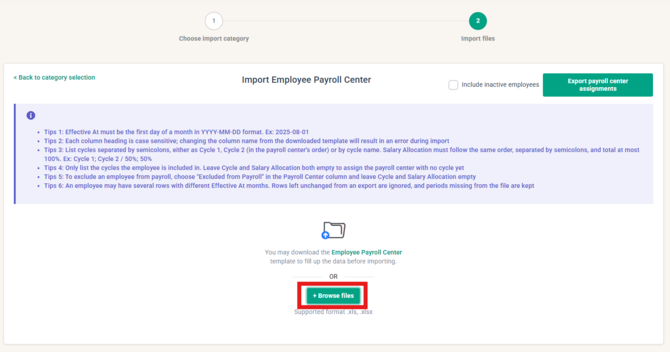
- Click +Browse file and select your file.
- Review the data. If any row has a problem, each error is listed with its line number and column.
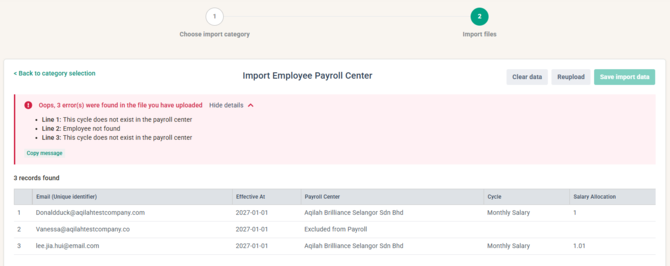
A row is rejected when:
- Effective At:
- it isn’t in YYYY-MM-DD format, or the day isn’t 01;
- it falls in a month whose payroll has already been paid;
- it is before the employee’s join month;
- it is after the last working month of a resigned employee.
- Payroll Center:
- it doesn’t exist in your company;
- you are a Payroll Center Admin and the center isn’t one you manage.
- Cycle:
- a cycle doesn’t exist in that payroll center, for example “Cycle 3” on a two-cycle center;
- only one of Cycle and Salary Allocation is filled in.
- Salary Allocation:
- it has a different number of values from Cycle;
- the values total more than 100%.
- Excluded from Payroll: the row also has a Cycle or Salary Allocation value. Both must be empty.
- Employee:
- the employee has two rows with the same Effective At month;
- the employee would have more than one scheduled future transfer;
- you are a Payroll Center Admin and the employee isn’t in one of your payroll centers.
To fix errors, correct the file and upload it again.
NOTE: Nothing is saved at this step. You can only save once every row passes.
Step 5 - Save the import
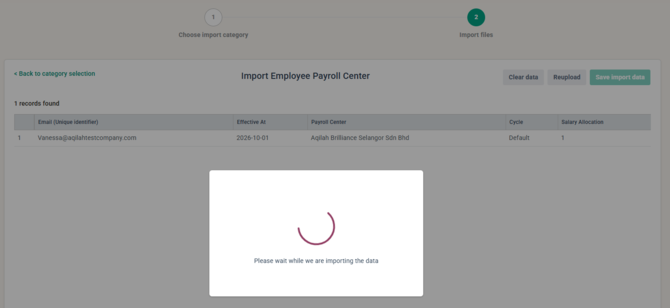
- Click Save Import Data.
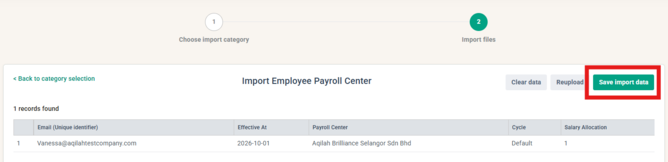
- The import runs in the background. You can keep working while it shows as in progress, and you’ll see the final result when it finishes.
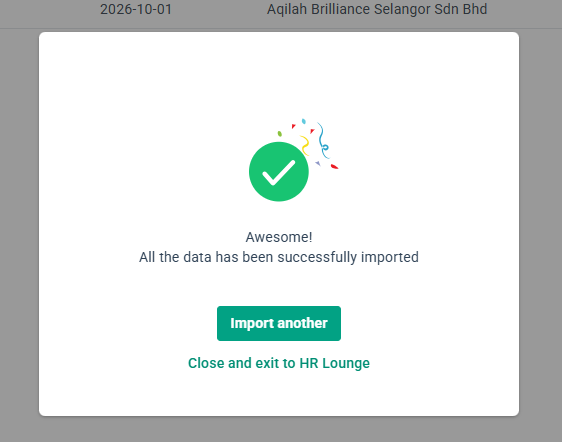
Step 6 - Check the result
Each employee’s payroll center history now shows the new periods.
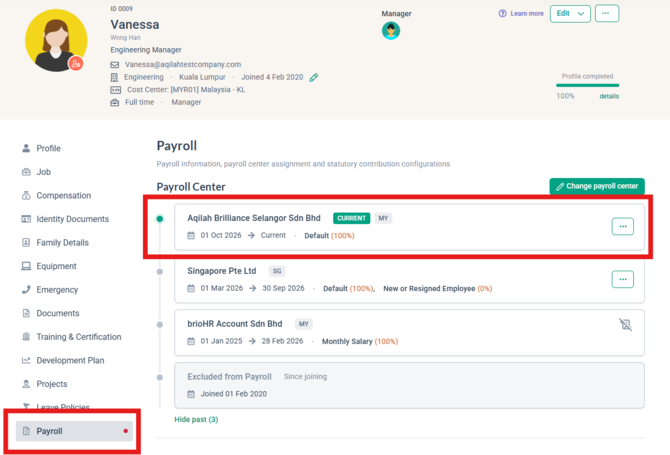
The import also does the following, the same as changing one employee’s payroll center by hand:
- Payroll details: a new period’s payroll details are filled in from the employee’s current settings, or from that country’s defaults.
- Fixed items: fixed remunerations and deductions on the payroll center the employee leaves are ended.
- Claims and timesheets: claims and timesheets left on the old payroll center are handled the same way as a single transfer.
- Open payroll runs: runs that include affected employees are flagged so you know to recalculate them.
- Audit log: one entry is written for each employee whose assignment actually changed. Unchanged rows add nothing.
IMPORTANT:
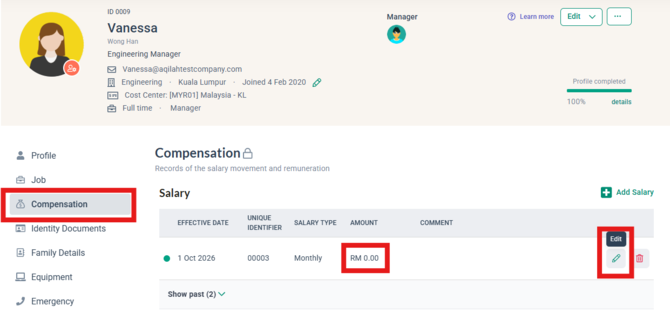
When you move an employee between Malaysia and Singapore, brioHR adds a salary of 0 in the new country’s currency. Enter the employee’s actual salary afterwards in Profile > Compensation or with the salary bulk import.
Common Issues/FAQ
Q1. Why was my whole file rejected when only one row was wrong?
The import is all or nothing, so you never end up with half a batch applied. Fix every error listed on the review screen and upload the file again.
Q2. Does the salary allocation have to total 100%?
No. Each value must be 0% or more, and the total can be anything up to 100%. But the employee profile will show that the employee's salary allocation is incomplete.
Q3. Can I backdate a transfer?
Yes, to any month whose payroll hasn’t been paid yet, and not before the employee’s join month.
Q4. Can I schedule a future transfer?
Yes, one per employee. A second scheduled future transfer for the same employee is rejected.
Q5. If I leave a period out of the file, is it deleted?
No. The import never deletes periods. Anything not in the file, including a scheduled future transfer, stays as it is.
Q6. How do I remove an employee from payroll?
Choose Excluded from Payroll in the Payroll Center column and leave Cycle and Salary Allocation empty. The employee will not be included in any payroll center for payroll processing.
Q7. Why can’t I see the Employee Payroll Center option?
You need HR Lounge access and Modify Everyone’s or Modify Payroll Center’s on Payroll Information. Ask your administrator to check your user group under Settings > User Groups.
Q8. Can I update tax, bank or overtime details in this file?
No. Use the payroll details bulk import for those.
Q9. Can employees change their own payroll center?
No. This is not available to employees, in bulk or on their own profile.
Related Articles
- How to change payroll center for employee (by HR/Admin)
- How to set the salary allocation percentage in bulk?
- How to Bulk Import Salary by Bulk
- How to Add or Update Employee Payroll Details in Bulk Efficiently
- Import Employee Fixed Remunerations and Deductions in Bulk for Payroll
- Bulk and Mass Updates in brioHR: What You Can Do in Bulk, and Where
Ownership
By: Aqilah