![brioHR-logo-color.svg]](https://support.briohr.com/hubfs/brioHR-logo-color.svg)
Introduction
The BrioHR Time and Attendance module supports seamless integration with third-party biometric devices, specifically the Timetec TC10 model.
This integration allows employees to clock in and out on-site using fingerprint or facial recognition, ensuring accurate and secure attendance tracking.
This article provides a complete overview and a downloadable step-by-step guide for first-time users to set up and connect their TC10 device with BrioHR.
How to Get Started
If you are setting up your device for the first time, download the Comprehensive First-Time User Guide below.
It contains detailed instructions on hardware installation, configuration, and integration.
To ensure successful integration, there are five key sections you must complete.
Each section is explained in detail in the downloadable guide.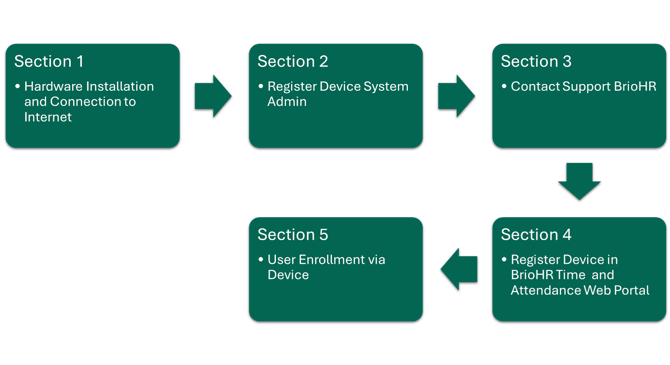
Section 1: Hardware Installation and Connection to Internet
Install the TC10 devices in convenient locations accessible to employees for daily clock-ins and clock-outs.Once installed, ensure that all devices are securely connected to the internet to enable communication with the BrioHR system.
Download here:
BrioHR - TC10 - Basic Installation Guide
NOTE:
Each TC10 device supports a maximum of 800 registered IDs. If your company has more than 800 employees, you may need more than one device to accommodate everyone. Please plan the number of devices you need before installation.
Section 2: Register Device System Admin
Create a System Admin within the device. This ensures that only authorized personnel can control or modify device settings.
If no admin is registered, unauthorized users may be able to access or change system configurations.
IMPORTANT:
1) Create ONLY the System Admin within the device.
2) Please DO NOT add employees directly on the device (except the System Admin). Employee data will be sync automatically from BrioHR after integration is activated.
Section 3: Contact Support BrioHR
Next, before completing the setup, you must inform BrioHR Support of your readiness for device integration.You can contact us via:
- Email: support@briohr.com
- Live Chat: Available in your BrioHR account (a dialogue icon at the bottom right corner)
Our support team will enable backend integration for your company account for the first time.
NOTE:
For Device Integration using the TimeTec TC10 device, there are two available configuration options that organizations may choose from based on their operational preferences:
Solution 1: Default Mode
Employees are required to select an action type on the device before performing their attendance transaction.
How it works:
Employees must first select either Clock In or Clock Out on the device interface before verifying their attendance using fingerprint or facial recognition.
Example:
An employee selects Clock In then provides their fingerprint or facial recognition scan before starting work and selects Clock Out then provides the same verification at the end of the workday.
Solution 2: First_Last Mode
Employees can perform attendance verifications directly without selecting an action type on the device.
How it works:
Employees simply verify their attendance using fingerprint or facial recognition, and the system will automatically determine and record the first transaction as Clock In and the last transaction as Clock Out.
Example:
An employee taps the device upon arrival and again before leaving, while the system automatically captures the corresponding Clock In and Clock Out records.
Note: If you'd also like employee break time tracked automatically (in addition to first/last clocking), let brioHR know when confirming Solution 2. This add-on requires employees to be on a Shift schedule with a break start period set up for their shifts, and requires Hybrid Attendance to be off for your company.
See: How to Link Timetec Device in BrioHR Time and Attendance Module for full details.
Please ensure that the preferred solution is shared with our BrioHR team when the Integration is performed.
CAUTION:
Do not proceed to the next step until you receive confirmation from BrioHR.
Section 4: Link Device in BrioHR Time and Attendance Web Portal
IMPORTANT:
Proceed only after BrioHR confirms successful backend integration.
- The HR Admin must first enable Device Integration in the Time and Attendance policy settings.
- Then, register the device serial number inside the Device Integration Log in the Time and Attendance module to connect it with your BrioHR account.
- Once successfully connected, employee details such as Employee ID, First Name and Last Name will automatically sync to the TC10 device.
IMPORTANT:
The TC10 device only supports alphanumeric Employee IDs (letters and numbers only). If an Employee ID in BrioHR contains any other characters, such as hyphens, spaces, or slashes (e.g. ID-001), that employee will not be synced to the device. Please update these Employee IDs in BrioHR (e.g. ID001) before linking your device.
Section 5: User Enrollment via Device
After employees' data have been synced to the TC10 device, the HR Admin, or Device System Admin must enroll users' biometric data.
Each employee must perform:
- Fingerprint registration
- Facial scanning
NOTE:
This is a one-time setup for first-time users.
Once biometric data is recorded, employees can start clocking in and out using their fingerprint or facial recognition through the TC10 device.
Need Assistance?
If you have any questions or require assistance, please reach out to our support team via live chat or email us at support@briohr.com.