![brioHR-logo-color.svg]](https://support.briohr.com/hubfs/brioHR-logo-color.svg)
Audience & Scope
Audience: HR and admin teams setting up brioHR for the first time
Module: Profile & Dashboards
Country: Malaysia, Singapore
Pre-requisites: Implementation kick-off meeting with your Implementation Manager (IM) completed; the Company Data Template and Employee List Template from your IM
This article is part of the Profile & Dashboards data migration series. It follows the Profile & Dashboards Data Migration Guide (PDF).
Where your data goes
💡 How to read the field tables
In the "Required" column, Compulsory means the column must be filled in, Optional means you can leave it blank, and Additional means it's there for any custom information you'd like in the system.
🔗 Related article
Each map shows what you provide, where it lands in brioHR and what it powers. Use it as a reference while you fill in the templates.
Map 1: Offices (company structure)
| Offices | |
|---|---|
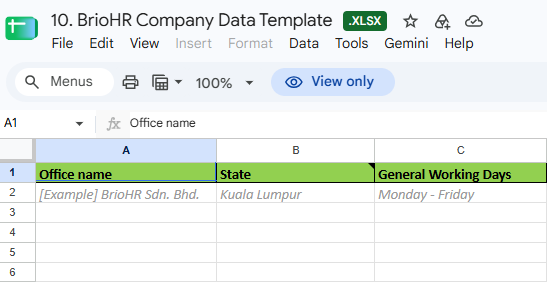
| What to provide | Office name, state and general working days. |
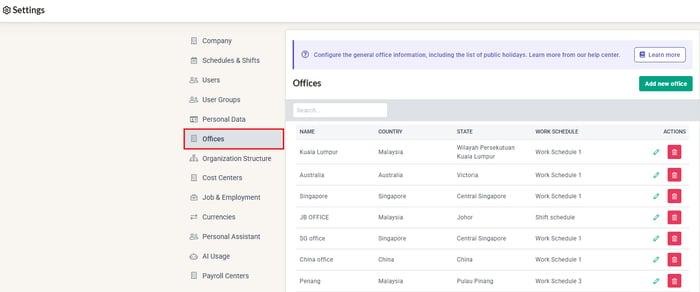
| Where it goes | Settings > Offices (from the Company Data Template, Office Setting tab). |
| What it powers |
|
| Example | Office name: BrioHR Sdn. Bhd. | State: Kuala Lumpur | General working days: Monday - Friday |
🔗 Singapore offices
The State column is designed around Malaysian states. If you have Singapore offices, confirm with your IM how to fill it in.
Sample of the Company Data Template
Where it appears in brioHR: Company Settings > Offices tab
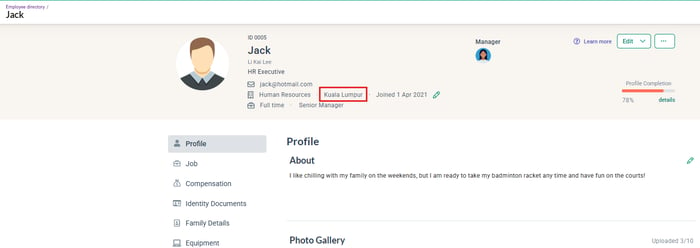
Where it appears in brioHR: the office assigned to each employee, on the Employee Profile
Map 2: Employee master data
| Employee master data | |
|---|---|
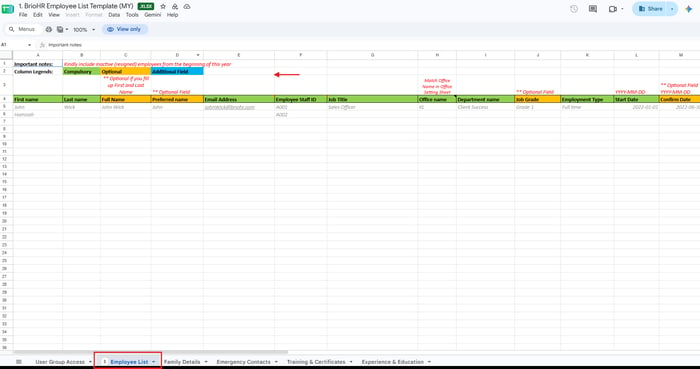
| What to provide | One row per employee on the Employee List tab. Each employee must appear once only. |
| Where it goes | HR Lounge > Employee Management (bulk import), which creates the employee profiles. |
| What it powers | See how key fields are used in the table below. |
| Format rules |
|
| Field | How brioHR uses it |
|---|---|
| Email address | The employee's system login ID. It must be unique. |
| Staff ID | The easiest way to identify employees, and the key used in the Payroll, Leave and Claims templates. |
| Job grade | Defines grade levels (for example Director, Management, Employee) and can restrict eligibility. |
| Employment type | Full time, Part time, Contractor, Freelance, Intern or Contract. Can restrict eligibility for leave and claims. |
| Gender | Can restrict gender-specific leave types. |
| Start date | Drives proration (working out partial-year entitlements) and earned leave. |
| Office name | Links the employee to an office (must match Office Setting exactly). |
| Last day of employment | Ends access for leavers (access ends the day after this date). |
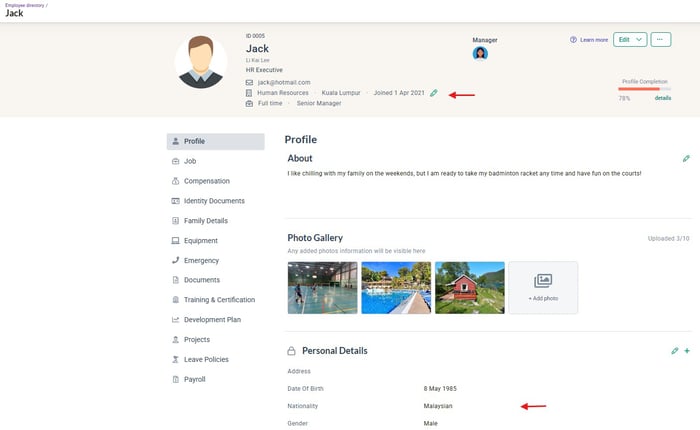
Sample of the Employee List Template (MY & SG)
Where it appears in brioHR: the Employee Profile
Map 3: Reporting line
| Reporting line | |
|---|---|
| What to provide | The Manager Email Address for every employee. (The Singapore template also offers a Manager Staff ID column.) |
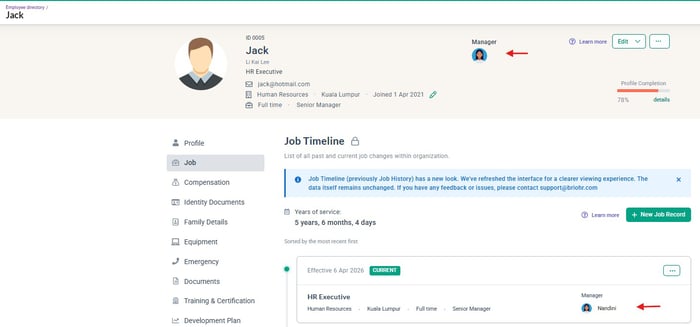
| Where it goes | The manager field on the employee profile. |
| What it powers |
|
💡 Tip
Every manager listed must also exist as an employee in your list. Double-check for circular reporting (A reports to B, and B reports to A).
Sample of the manager details in the Employee List Template (MY & SG)
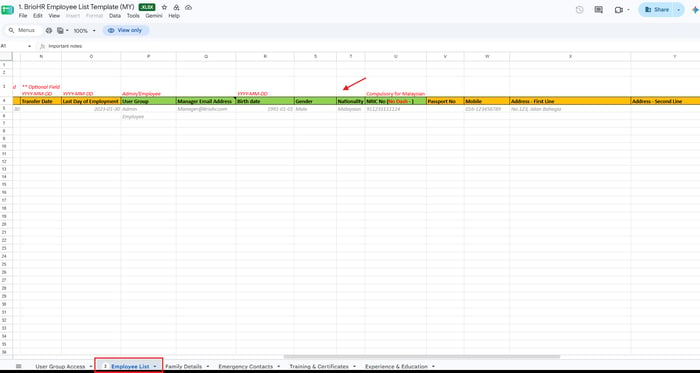
Where it appears in brioHR: Employee Profile > Job tab, and within reports
← Previous: What to Prepare Before Filling In Your Profile & Dashboards Templates
Next: Where Your Profile & Dashboards Data Goes in brioHR: User Groups, Profile Tabs and Payroll Centers →
Back to Profile & Dashboards Data Migration and Verification: Start Here
Ownership
By: Aqilah