![brioHR-logo-color.svg]](https://support.briohr.com/hubfs/brioHR-logo-color.svg)
Audience & Scope
Audience: HR Admin
Module: Core HR
Country: Global
Pre-requisites: Access to Admin Settings (User group permissions)
brioHR now allows you to add in both Day Off and Rest Day as part of your schedule. The 'Day Off' can later be part of rosters for employees assigned schedules with a Day Off. If employees work on their Day Off, they can be paid an overtime rate for a Day Off/Off Day (processed from Time Attendance Timesheet to Payroll).
A Day Off in the schedule also impacts the employee's leave calendar. Employees will not be able to take leave on their Day Off.
Step-by-Step Instructions to set up Day Off in Schedules
Add Day Off to Schedules
1. Go to Admin Settings > Schedules & Shift > Work Schedules
2. Create or Edit a schedule
3. Choose which day will be Day Off in the schedule. This works for both shift-based and flexible work arrangements.
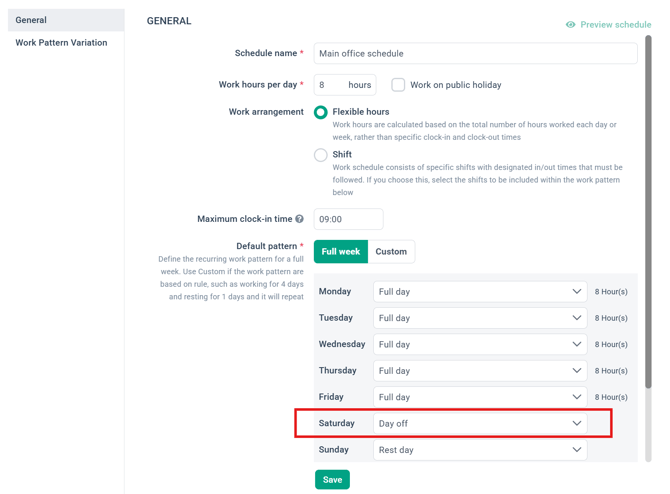
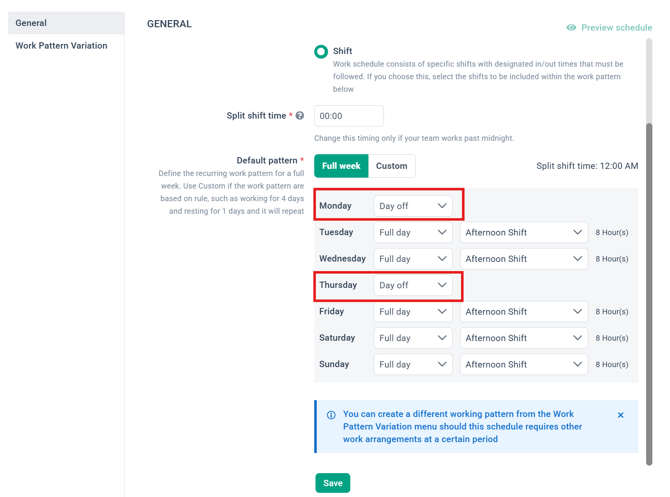
4. Click Save once done. Then, Confirm save. Remember, schedule changes may affect rosters without clock in/out data. Locked rosters will not be affected. 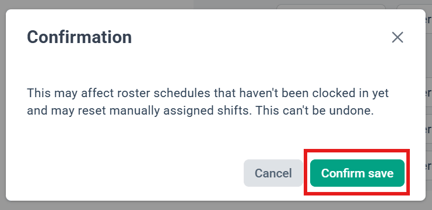
Note:
Any Day Off added to employee schedules will also be reflected in the BrioHR Mobile App, ensuring schedule information remains consistent across both web and mobile platforms.
Assigning schedule to employees
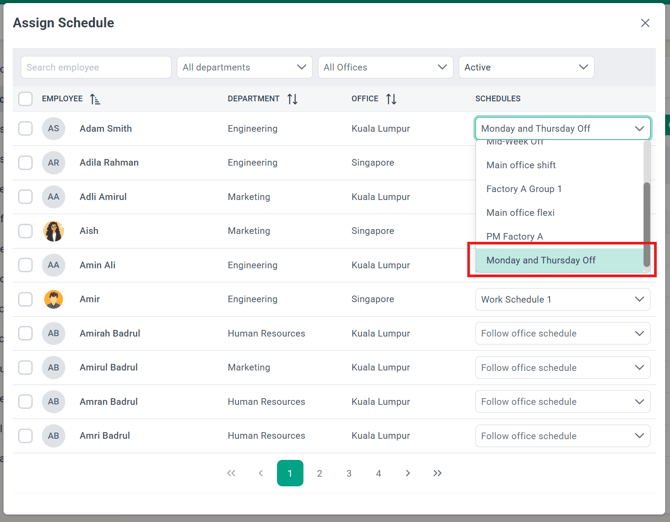
1. To assign an employee to a different schedule, go to Admin Settings > Schedules & Shifts and click Assign schedule
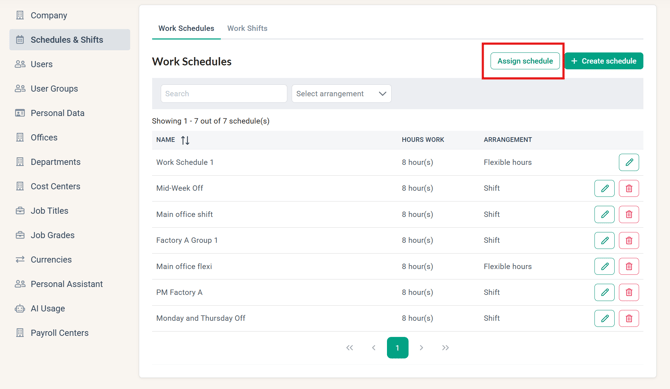
2. Assign the schedule to the specific employee(s)
Learn more:
Impact of Day off to Time Attendance, Payroll, and Leave
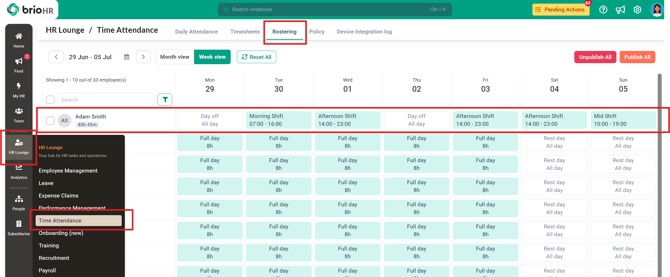
1. Go to HR Lounge > Time Attendance > Rostering and check Day off is reflected correctly based on the schedule assigned
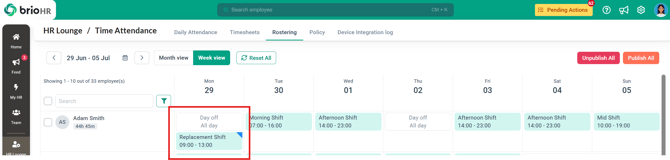
4. If a shift is assigned on a Day off in the roster, a blue tag is added to the shift to indicate a different pay rate may apply (Overtime for Off Day/Day Off)
5. If the employee has worked the shift, and the OT for Off Day/Day Off is approved, it will be recorded in the timesheet.
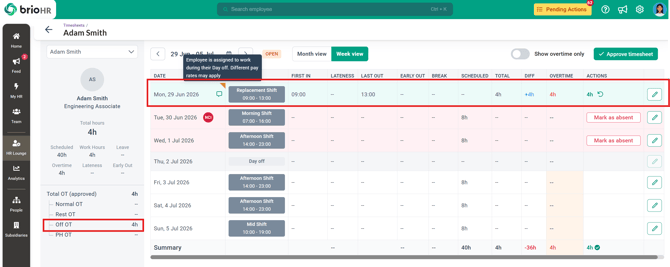
6. Once the timesheet is approved, it can be sent to payroll to be processed
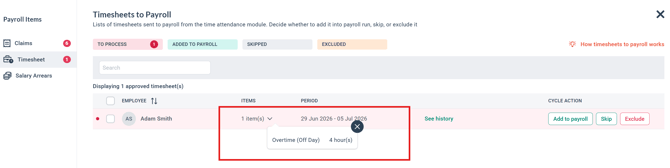
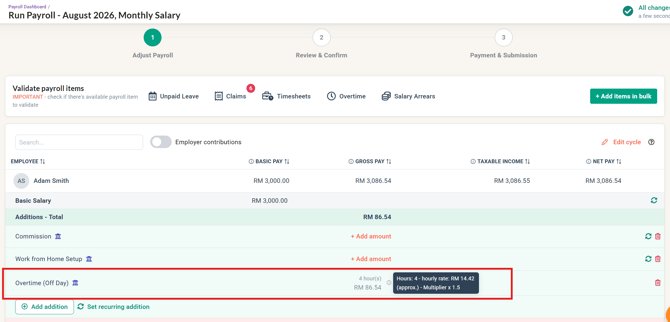
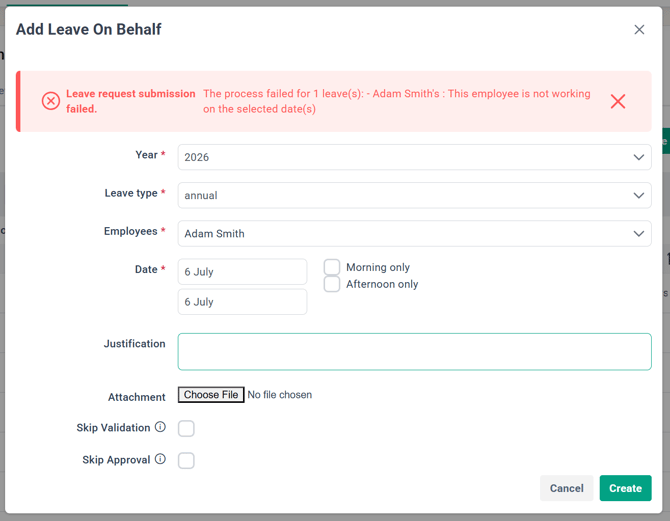
7. For Leave, employees will not be able to submit leave on their Off Day/Day Off. The system will tell them they are not scheduled to work on that date.
Common Issues/FAQ
Q: How do I change the multiplier for my Overtime (Off Day)?
A: Currently, the default Overtime (Off Day) is set to have a 1.5 multiplier for Malaysian Payroll Centers. Read this article here to learn more. For Singaporean Payroll Centers, you can configure your Day Off multiplier under Payroll Settings > General > Calculation. Refer to this article here.
Related Articles
How to Assign a Custom Work Schedule for Employees
How to Assign Work Schedules by Office
Find Default Overtime Payroll Items and Add to OT Multi-rates Table
Payroll Singapore: How to Set Up Company Payroll General Settings
Ownership
By: Aqilah