![brioHR-logo-color.svg]](https://support.briohr.com/hubfs/brioHR-logo-color.svg)
Audience & Scope
Audience: HR and admin teams setting up brioHR for the first time
Module: Payroll Singapore
Country: Singapore
Pre-requisites: Implementation kick-off meeting with your Implementation Manager (IM) completed; the Company Payroll Info (SG) and Employee Payroll Data (SG) templates from your IM; Employee List loaded and verified (Profile & Dashboards)
This article is part of the Payroll Singapore data migration series. It follows the Payroll Singapore Data Migration Guide (PDF).
Employee Payroll Data (SG)
This template has three tabs for you to work in: Employee payroll data, Employee Fixed Allowance/Deduction, and an Instructions tab. Please read these rules from the Instructions tab first:
- Bulk upload overwrites everything. The upload overwrites the payroll data of all your employees.
- Don't add or remove employees. If you don't want to change an employee's data, upload their row unchanged. Include employees who resigned earlier this year: brioHR needs their pay for the whole year so that their year-end IR8A is complete and correct.
- Don't add or delete columns. All columns are needed for a successful upload. If something doesn't apply to an employee, leave it blank.
- Some fields can't be overwritten. The file can overwrite every field except Employee ID, first name, last name, ID type, ID number and passport number.
- Don't touch the lists. The bank list, resident categories and CPF categories worksheets are used for dropdowns.
💡 Tip
Keep a copy of your original data before you change the file. The upload replaces the payroll data of all your employees, so a saved copy lets you go back if something goes wrong.
Example of the Employee payroll data tab:


Employee payroll data tab: Employee
| Field | Required | Notes |
|---|---|---|
| Employee ID | If applicable | Optional. If your company does not use employee IDs, leave this blank and brioHR will generate one for each employee. If you use employee IDs, it must match your Employee List exactly (Employee ID / Staff ID). |
| First name | Compulsory | Name as per NRIC or passport. |
| Last name | Compulsory | Name as per NRIC or passport. |
| Double cycle | Fill in | Options: Yes or No. Ask your IM if you're unsure. |
Employee payroll data tab: Employee information
| Field | Required | Notes |
|---|---|---|
| Wage type | Fill in | Options: Monthly or Hourly. |
| Hourly rate | If applicable | For Hourly wage types. |
| Basic salary (SGD) | Fill in | |
| ID type | Fill in | Options: NRIC or FIN. |
| ID number | Fill in | |
| Resident category | Fill in | Choose from the dropdown (see the list below). It drives how CPF and levies are treated. |
| Work permit category | If applicable | For work permit holders. Choose from the dropdown. |
| PR effective date | Compulsory for PRs | Marked compulsory for PRs in the template. Format YYYY-MM-DD. |
| Passport number | If applicable | |
The resident category dropdown has these options:
| Group | Options |
|---|---|
| Citizen and PR | Singapore Citizen; Permanent Resident; Permanent Resident - Graduated; Permanent Resident - Full Graduated. |
| S Pass | Basic Tier / Tier 1, Tier 2, Tier 3. |
| E Pass | Basic Tier / Tier 1, Tier 2, Tier 3. |
| Work Permit | Basic Tier, Man-Year Entitlement, Tier 2, Tier 3. |
| Other passes | Dependent Pass (LOC); Student Pass; Contract; Contract with SDL; Long-term Visit Pass; Working Holiday Pass. |
🔗 Related article
Employee payroll data tab: Bank account
| Field | Required | Notes |
|---|---|---|
| Paid in cash | Fill in | Options: Yes or No. |
| Bank account | If applicable | Choose the bank from the dropdown. Let your IM know as soon as you can if your employee's bank is not available. |
| Account holder name | If applicable | |
| Account number | If applicable | |
Statutory contributions (CPF, CDAC, ECF, MBMF, SINDA, SDL and FWL columns) are covered in the next chapter.
Employee Fixed Allowance/Deduction tab
Only fill this in when an employee has a monthly fixed allowance or deduction with the same amount each month. Dates are in YYYY-MM-DD format. You can add several rows for the same employee. Example of the Employee Fixed Allowance/Deduction tab:
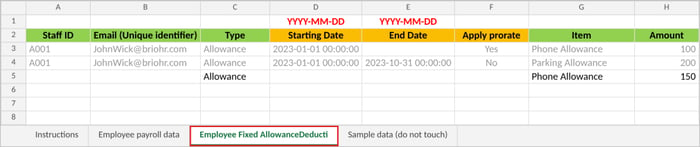
| Field | Required | Notes |
|---|---|---|
| Staff ID | If applicable | Optional. Leave blank if your company does not use Staff IDs. If you use them, it must match your Employee List exactly. |
| Email (unique identifier) | Compulsory | Must match your Employee List exactly. |
| Type | Fill in | Allowance or Deduction. |
| Starting date | Fill in | YYYY-MM-DD. |
| End date | If applicable | YYYY-MM-DD. Leave blank if the item has no end date. |
| Apply prorate | Fill in | Yes or No. |
| Item | Fill in | The name of the item, for example Phone Allowance or Parking Allowance. Use the same name every time. |
| Amount | Fill in | The fixed monthly amount. |
💡 Quick format reminders
If you use employee IDs, copy Employee ID and Staff ID from the Employee List so they match exactly. Upload the full, current file every time, not a partial update.
🔗 Related articles
← Previous: How to Fill In the Company Payroll Info Template (Singapore Payroll Guide)
Back to Payroll Data Migration and Verification: Start Here (Singapore Payroll Guide)
Ownership
By: Aqilah