![brioHR-logo-color.svg]](https://support.briohr.com/hubfs/brioHR-logo-color.svg)
Audience & Scope
Audience: HR and admin teams setting up brioHR for the first time
Module: Time Attendance
Country: Malaysia, Singapore
Pre-requisites: Implementation kick-off meeting with your Implementation Manager (IM) completed; Time Attendance data migrated by your IM
This article is part of the Time Attendance data verification series. It follows the Time Attendance Data Verification Guide (PDF).
The trial run
Settings that look right can still behave differently on a real working day. A trial run means: for a short period before go-live, a group of employees clock in on brioHR as well as your current system, then you compare the hours, lateness and overtime the two give. It is only a trial: trial timesheets are not sent to a live payroll.
⚠ Before you start
Agree with your IM the trial dates and the employees taking part, and how the trial's attendance records will be handled before go-live. Don't send trial timesheets to a live payroll cycle. If you are also trying out payroll, use a test payroll cycle, don't release or send its payslips, and delete it afterwards.
Set up the trial
- Choose a trial period, for example one or two weeks, that includes a normal working week and, if you can, a rest day shift or a public holiday.
- Choose employees with different setups: someone on each schedule and each policy, someone on flexible hours, someone who often works overtime, and someone from each office or clock-in location.
- Publish their rosters for the trial period (Step 8), and share the employee clock-in guides in Help Your Managers and Employees Get Started with Time Attendance.
- Ask them to clock in and out on brioHR as well as your current system for every day of the trial.
Try each way of clocking in
During the first days of the trial, check each clock-in method you use works without issues:
| What to try | What should happen |
|---|---|
| Clock in and out on the web | Works for employees whose policy has no location check or facial recognition. |
| Clock in and out on the mobile app | Works, including taking a break and the final clock-out. |
| Clock in at an allowed location, and from outside it | Allowed at the location, and blocked outside it (if clock-ins are restricted). |
| Clock in with facial recognition | The one-time face setup works, and later clock-ins ask for verification. |
| Clock in on an attendance device or through an integration | The clock-in appears for the right employee, in Daily Attendance and in the integration logs. |
Check the results day by day
Use HR Lounge > Time Attendance > Daily Attendance and the trial employees' timesheets to check that each of these situations is worked out the way your shift times and policy say it should be:
| Situation | What should be true |
|---|---|
| Clocks in after Late (In) | Lateness is counted from Actual (In), then rounded as the policy says. |
| Clocks out before Earliest (Out) | An early out is counted from Actual (Out), then rounded. |
| Clocks in before the shift, or out after it | Overtime counts from no earlier than Earliest (In), and up to Late (Out), after any overtime buffer, then rounded. |
| Takes a longer break than allowed | Added to lateness, if Track break lateness is on. |
| Works a shift on a rest day or public holiday | Shows on the roster as a rest day or public holiday shift, so the right overtime rate applies. |
| Takes half-day leave | The shift is split the way you agreed. |
| Forgets to clock out | The timesheet shows Incomplete until HR or the supervisor adds the clock-out. |
| Overtime needs approval | The supervisor named in the policy is asked to approve it, in the way you agreed. |
| Works a shift with a tag | The shift premium or deduction units show in the timesheet. |
🔗 Related articles
Compare the totals with your current system
At the end of the trial, compare brioHR with your current system for the same employees and the same dates. Check the big numbers first.
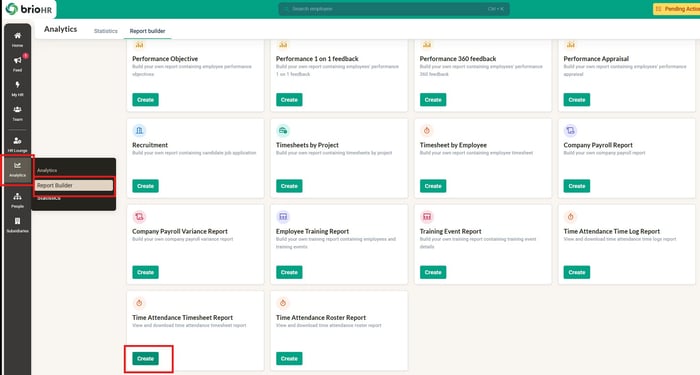
- In Analytics > Report Builder, create the Time Attendance Timesheet Report for the trial dates and export it to Excel.
- For each employee, add up the hours worked, lateness, early out and overtime, and compare each total with your current system.
- If every total tallies, your setup is working as intended.
- If a total does not tally, compare that employee day by day to find the day that differs, then check the shift, schedule or policy behind it.
Click into Analytics > Report Builder > Time Attendance Timesheet Report
💡 Good to know
Each report can only pull a maximum of 1 month of data at a time. This applies to all three Time Attendance reports: Time Log, Timesheet and Roster. If your trial runs for longer than a month, create one report for each month.
🔗 Note every difference
Check whether there are any discrepancies. Note down every difference you find, however small, and raise it with your IM so the cause can be found and explained before go-live.
⚠ Out of scope
This guide checks that brioHR matches the setup you submitted. Deciding your company's attendance rules, such as grace periods, overtime eligibility and rates, is your company's decision. If you want to change a rule, tell your IM.
🔗 Related articles
- How to Download Time Log, Timesheet, and Roster Reports in BrioHR Time & Attendance
- Choose Between the Time Log Report and the Timesheet Report
- How HR Admin Approves Employees' Attendance Timesheets in BrioHR
- How HR Admin Can Send Approved Employees' Attendance Timesheets to Payroll in brioHR
- Delete Latest Payroll Cycle in Current Payroll Month
← Previous: How to Verify Overtime, Clocking In, Access and Your First Rosters
Next: If Your Time Attendance Data Doesn't Match, and How to Sign Off for Go-Live →
Back to Time Attendance Data Migration and Verification: Start Here
Ownership
By: Aqilah