![brioHR-logo-color.svg]](https://support.briohr.com/hubfs/brioHR-logo-color.svg)
Audience & Scope
Audience: HR and admin teams setting up brioHR for the first time
Module: Time Attendance
Country: Malaysia, Singapore
Pre-requisites: Implementation kick-off meeting with your Implementation Manager (IM) completed; Time Attendance data migrated by your IM
This article is part of the Time Attendance data verification series. It follows the Time Attendance Data Verification Guide (PDF).
Step 5: Check overtime, shift premiums and payroll
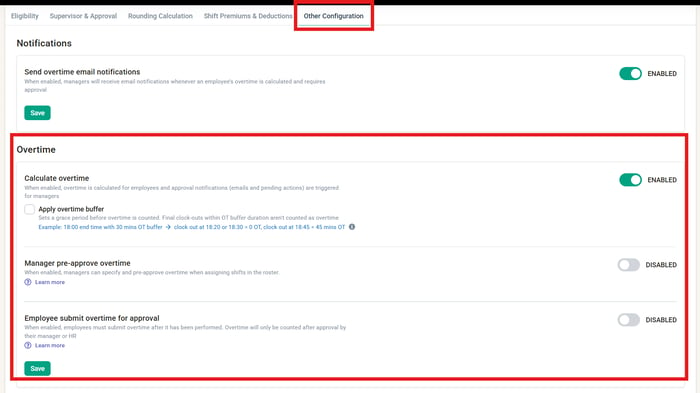
- In each policy, under Other Configuration > Overtime, check Calculate Overtime is on or off as agreed, the approval option is the one you chose, and the overtime buffer (if any) is right. Check overtime email notifications are on or off as agreed.
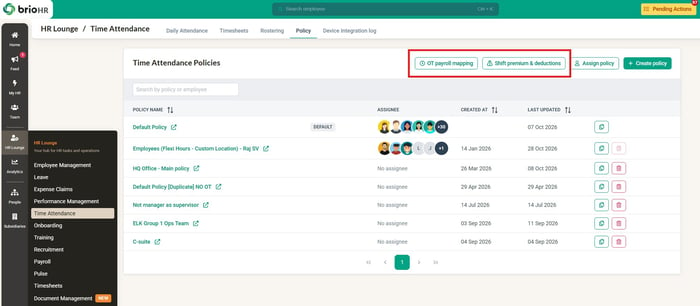
- Under Policy > Shift Premiums & Deductions, check each premium or deduction: its shift tags, unit (Shift or Hours), eligibility criteria and payroll connection for each payroll center. Then check it is added to the right policies.
- If you pay through brioHR Payroll, open Policy > OT Payroll Mapping and check the pay item for each type of overtime, for each payroll center.
Click into HR Lounge > Time Attendance > Policy > choose a policy > Other Configuration > Overtime
Click into HR Lounge > Time Attendance > Policy > OT payroll mapping / Shift premium & deductions
💡 Good to know
Changes to shift premiums and deductions apply from the date of the change. Timesheets already approved aren't changed.
🔗 Related articles
Step 6: Check how employees clock in
- In each policy, under Other Configuration, check Geolocation: on or off, and whether clock-ins are restricted to the shift location, to custom locations (check each address), or not restricted.
- Check Facial recognition is on only for the policies you agreed.
- If you use an attendance device or integration, check Use Integration (and Allow Hybrid Attendance, if agreed) is on for the right policies. Facial recognition and geolocation are off for policies that use an integration.
- For a Timetec device, check every employee has synced to it. Employee IDs with hyphens, spaces or slashes don't sync.
🔗 Related articles
- How to Setup Multi-Geolocation and Geolocation Clock-in in BrioHR Time & Attendance
- BrioHR Mobile App Clock-In: Facial Recognition Setup Instructions
- How to Setup Time Attendance Module for API or SFTP Integration
- BrioHR Time And Attendance Device Integration Guide (TC10 Model)
- Enabling Hybrid Attendance as a HR Admin
Step 7: Check who can access Time Attendance
- In Admin Settings > User Groups, check each group's access to the Time Attendance module matches your User Group Access tab, and that the people who run reports have access to Time Attendance Reports.
- Check that the people who send timesheets to payroll have HR Admin access to both Time Attendance and Payroll.
- Check supervisors can see their team under Team > Time Attendance. Managers only see employees whose policy names them as supervisor.
🔗 Related articles
Step 8: Check and publish your first rosters
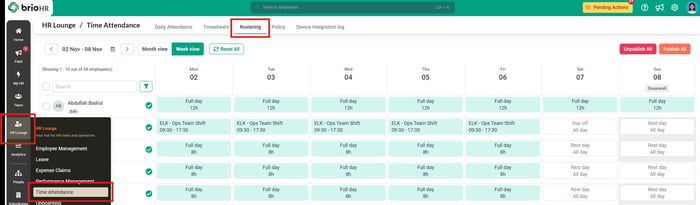
- Go to HR Lounge > Time Attendance > Rostering and open the first roster period after go-live (or your trial period).
- For employees from each schedule, check each day shows the right shift, rest day or public holiday. Days where a schedule offers more than one shift are left empty for you or the supervisor to choose.
- Check in bulk: in Analytics > Report Builder, create the Roster Report for the period and export it. Check each employee's scheduled hours for the period against the roster you use today.
- Once rosters are right, publish them. A green tick shows next to each employee whose roster is published.
- If a shift or schedule is changed after rosters are filled in, the roster doesn't update by itself. Reset or replace the affected days, then publish again.
Click into HR Lounge > Time Attendance > Rostering
🔗 Related articles
← Previous: How to Verify Your Work Shifts, Schedules and Time Attendance Policies
Next: How to Run a Time Attendance Trial Before Go-Live →
Back to Time Attendance Data Migration and Verification: Start Here
Ownership
By: Aqilah