![brioHR-logo-color.svg]](https://support.briohr.com/hubfs/brioHR-logo-color.svg)
Audience & Scope
Audience: HR Admin
Module: Time Attendance
Country: Global
Pre-requisites: HR Module Permission for Time Attendance Module
Quick Decision Guide: Which Option is Right for You?
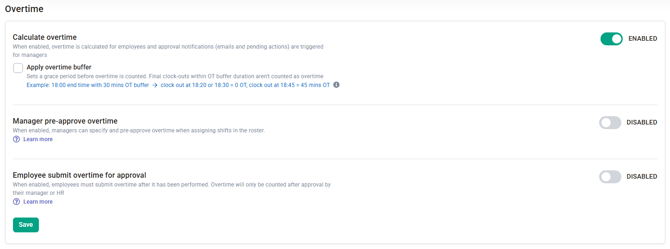
- Want OT calculated and sent for approval automatically after a shift?
- Choose Option 1: Automated Post-Approval.
- Need strict control and approval before any OT happens?
- Choose Option 2a or 2b: Pre-Approval.
- Want employees to manually verify and claim their OT after their shift?
- Choose Option 3: Manual Post-Approval.
- Choose Option 3: Manual Post-Approval.
The Three Approval Options Explained
- Option 1: Automated Post-Approval (System-Initiated): An automated approval request is sent to the supervisor/manager for any OT duration after the OT is completed.
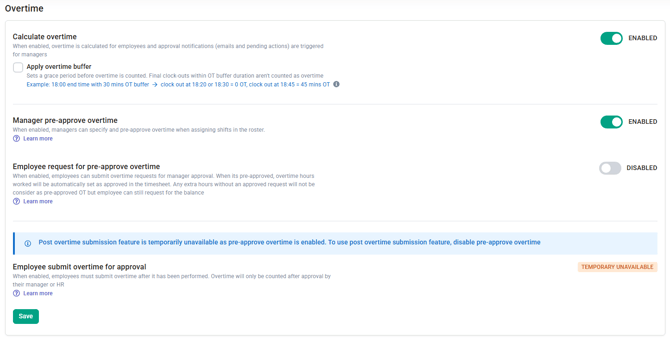
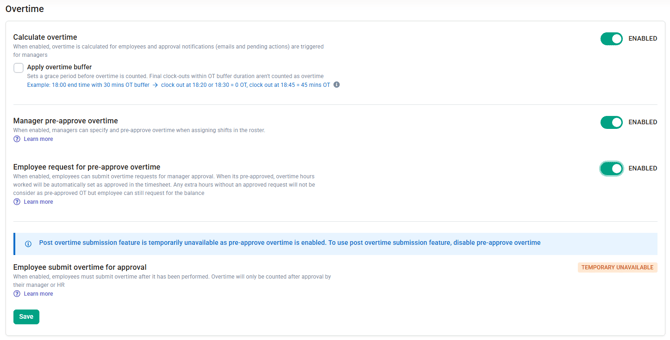
- Option 2: Pre-Approval: Expected OT hours must be approved before the OT is performed. This has two variations:
- Option 2a (Manager-Assigned): The supervisor/manager assigns and pre-approves the OT.
- Option 2b (Employee-Requested): The employee applies for pre-approved OT, and the supervisor/manager pre-approves it.
- NOTE: Option 2b has to be enabled together with 2a. But Option 2a can be enabled with 2b disabled. Enable 2a and disable 2b if you only want managers/supervisors to be able to assign pre-approved OT.
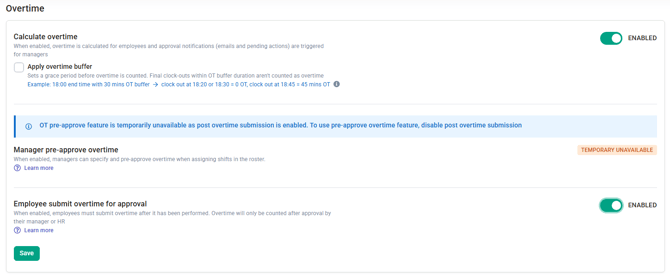
- Option 3: Manual Post-Approval (Employee-Initiated): An approval request is sent ONLY when the employee manually submits a request after the OT is completed.
| Feature | Option 1: Automated Post-Approval | Option 2a & 2b: Pre-Approval | Option 3: Manual Post-Approval |
| How it Triggers | The system automatically calculates OT right after the employee clocks out. | The manager assigns OT hours (2a), or the employee requests OT hours (2b) in advance for a future shift. | The system calculates OT after clock-out, but the employee must manually submit a claim. |
| When the Manager is Notified | As soon as the system detects OT (depends on your policy's buffer settings). |
2a: No notification (manager assigned it). 2b: When the employee submits the OT request (before performing OT). |
When the employee submits the OT request (after performing OT). |
| What Can Be Approved | Any duration the manager enters (e.g., round up 59 mins to 1 hour, or round down 46 mins to 45 mins). |
• Actual OT (if the employee worked less than pre-approved hours). • Pre-approved hours (if the employee worked more than pre-approved). |
Any duration the manager enters. Note: Employees can only request up to their actual worked OT. |
| If No Action is Taken (Timesheet is Approved) | Auto-Approved: The actual OT duration is automatically approved. | Auto-Rejected: If no OT was pre-approved, the actual OT duration is automatically rejected (only pre-approved OT is accepted). |
Auto-Approved: If the employee requested OT. Auto-Rejected: If no OT was requested by the employee. |
Policy Settings & Setup Details
Option 1: Automated Post-Approval
LEARN MORE:
Option 2a: Pre-Approval (Manager Assign)
LEARN MORE:
Option 2b: Pre-Approval (Employee-Requested)
LEARN MORE:
- Enable Employee Pre-Approve Overtime Setting as HR Admin
- Requesting Pre-Approved Overtime as an Employee
- Employee Pre-Approval Overtime on BrioHR Mobile App
- Managing Pre-Approval Overtime Submission Requests as a Manager
Option 3: Manual Post-Approval (Employee-Initiated)
LEARN MORE:
Common Issues/FAQ
Q1: Can I enable both pre-approval and post-approval overtime requests by employee in a Time Attendance Policy?
A1: No. Currently, only one of the options above can be enabled at one time for a policy.
Q2: Can I set up different OT approval methods for different departments?
A2: Yes. Overtime approval settings are tied to the Time Attendance Policy. You can create different TA policies for different departments or roles and assign the appropriate OT approval method to each.
Q3: What happens if an employee works less than their pre-approved OT hours?
A3: Under the Pre-Approval settings (Options 2a and 2b), the system will only approve the actual OT hours worked, ensuring employees aren't overcompensated if they leave early.
Q4: What happens if an employee works more than their pre-approved OT hours?
A4: The system will cap the approved time at the pre-approved amount. Any extra time worked beyond the pre-approved hours will not count as approved OT.
Q5: In Option 3 (Manual Post-Approval), what happens if the employee forgets to submit their OT claim?
A5: If the employee does not manually submit an OT request, any actual OT duration detected by the system is automatically rejected when the timesheet is approved.
Related Articles
- How to Create and Setup a New Time Attendance Policy
- How to Assign Employees to a Time Attendance Policy in BrioHR
Ownership
By: Aqilah