![brioHR-logo-color.svg]](https://support.briohr.com/hubfs/brioHR-logo-color.svg)
Audience & Scope
Audience: HR and admin teams setting up brioHR for the first time
Module: Payroll Singapore
Country: Singapore
Pre-requisites: Implementation kick-off meeting with your Implementation Manager (IM) completed; the Company Payroll Info (SG) and Employee Payroll Data (SG) templates from your IM; Employee List loaded and verified (Profile & Dashboards)
This article is part of the Payroll Singapore data migration series. It follows the Payroll Singapore Data Migration Guide (PDF).
What data you'll be providing
The data groups
Your data lives in two templates, which your Implementation Manager (IM) will send you.
| # | Data group | What you provide | Template and tab |
|---|---|---|---|
| 1 | Company payroll info | Company and tax registration details, authorised person, company bank account and bank file format, pay day, and the proration, unpaid leave, leave payable and overtime formulas. | Company Payroll Info (SG) Tab: Company Payroll Info |
| 2 | Employee payroll data | Wage type, basic salary, ID and residency details, bank details, and CPF, community fund, SDL and FWL settings. | Employee Payroll Data (SG) Tab: Employee payroll data |
| 3 | Fixed allowances and deductions | Details of allowances and deductions that are the same amount every month. | Employee Payroll Data (SG) Tab: Employee Fixed Allowance/Deduction |
| 4 | Payroll History Reports | Details (Reports) of your completed past payroll months in the current year. | No template Send your reports in Excel format (see How Statutory Contributions and Payroll History Are Captured in Your Templates (Singapore Payroll Guide)) |
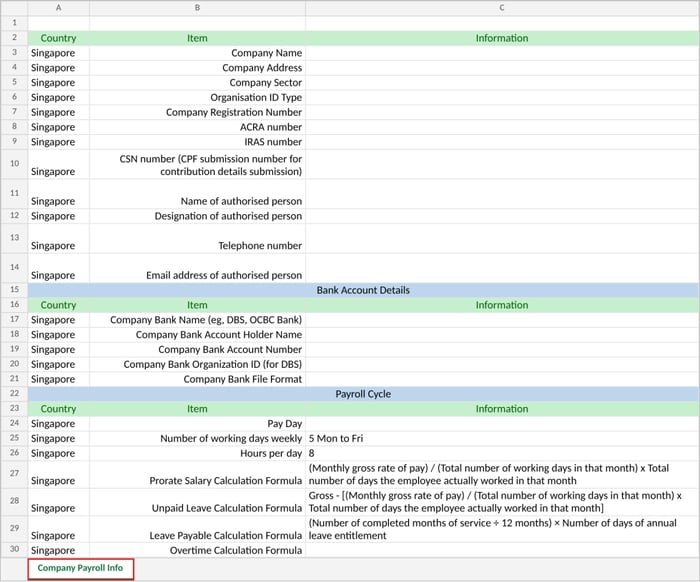
Where data group 1 goes: the Company Payroll Info (SG) template. Company details, bank account details and the payroll cycle sit on one tab, one below the other.
Get ready: a quick readiness checklist
| Get ready | Why | |
|---|---|---|
| ☐ | Your Employee List template is filled in (see the Profile & Dashboards guide). It doesn't need to be verified yet; that happens in the data verification articles | Payroll rows need a matching name, Staff ID/Employee ID (if you use them) and email to attach to the right employee once your account is configured. If a row cannot be matched to an employee on your Employee List, that employee's pay data cannot be loaded and they will be missing from payroll. |
| ☐ | You know how many payroll centers you have and who manages each. | The people who manage a payroll center need access to its payroll data: anyone who needs to view or download its reports, payroll documents or bank file has to be set up as a payroll manager of that center. This is often missed, and it only shows up later when someone cannot download what they need. |
| ☐ | You have your company details: registration number, ACRA number, IRAS number, CSN number, sector and organisation ID type. | These sit at the top of the Company Payroll Info template. They identify your company on statutory submissions. If they are missing or wrong, those submissions cannot be generated correctly and have to be redone. |
| ☐ | You have the name, designation, phone number and email of your company's authorised person. | Asked for in the Company Payroll Info template, and included in your statutory submissions. |
| ☐ | You have your company bank details, and your bank file format (and DBS organisation ID, if you bank with DBS). | The bank file brioHR generates for salary payment is built from your company bank details, so if the bank name, account holder name or account number is missing or wrong, you cannot generate a bank file that your bank will accept. |
| ☐ | You've decided your pay day, and how you want overtime to be calculated. | These rules drive every payslip, and a wrong setting changes the amount for every employee, so agree them now rather than after your first payroll. brioHR processes payroll on a full calendar month, from the 1st to the last day. The overtime formula is blank in the template for you to fill in. |
| ☐ | You have each employee's pay figures, ID type and number, resident category, and bank details. Include employees who resigned earlier this year. | These feed the main Employee payroll data tab. A wrong resident category gives wrong CPF, and missing bank details mean the employee cannot be paid through the bank file. Resigned employees are included so this year's figures are complete. |
| ☐ | You know each employee's CPF, community fund (CDAC, ECF, MBMF, SINDA), SDL and FWL status, and the PR effective date for PRs. | These are set for each employee, and drive the statutory contributions. A missing PR effective date gives the wrong CPF rate for a Permanent Resident. |
| ☐ | You know which employees have a fixed monthly allowance or deduction. | These go in the Fixed Allowance/Deduction tab. If they are left out, they will not be added automatically to monthly payroll and payslips, so each one would have to be added by hand every month. |
| ☐ | You have the payroll report from the start of the year to the most recent month completed payroll. | We will migrate all the past payroll numbers so all your numbers tally when you go live for payroll. This also keeps your year-to-date totals, and reports built from them, complete from your first live payroll. |
← Previous: Understanding the Payroll Data Migration Process (Singapore Payroll Guide)
Next: How to Fill In the Company Payroll Info Template (Singapore Payroll Guide) →
Back to Payroll Data Migration and Verification: Start Here (Singapore Payroll Guide)
Ownership
By: Aqilah